There are two ways to reset a Sonos speaker. A reboot restarts it and keeps all your data. It fixes most problems. A factory reset wipes every setting and is best for selling or gifting. Try a reboot first. To factory reset, hold your model’s button (Join, Bluetooth, or Play/Pause) while powering on. Wait for the light to flash orange and white, then green.
The word reset means two different things on a Sonos speaker, and mixing them up can cost you your settings. This guide shows you how to reset a Sonos speaker the right way. You will learn which reset you need, the exact steps for every model, what the blinking lights mean, and what to do if the reset will not finish. Sonos, Inc., a company based in Santa Barbara, CA, makes many speaker models, and each one has its own button. We cover all of them, so you can find yours and get it done fast.
What does it mean to reset a Sonos speaker?
Reset can mean two things on a Sonos. A reboot power cycles the speaker and keeps all your data. A factory reset, also called a hard reset, erases every setting and sends the speaker back to its out of box state.
Most problems need only a reboot, which some people call a soft reset. A factory reset is a bigger step, and you cannot undo it. The rest of this page helps you pick the right one, then walks you through it.
Reboot vs factory reset: which one do you need?
Pick a reboot for glitches, a speaker that dropped offline, or audio that froze. It deletes nothing. Pick a factory reset only to sell, gift, or when the Sonos app cannot find the speaker during setup. A factory reset is permanent.
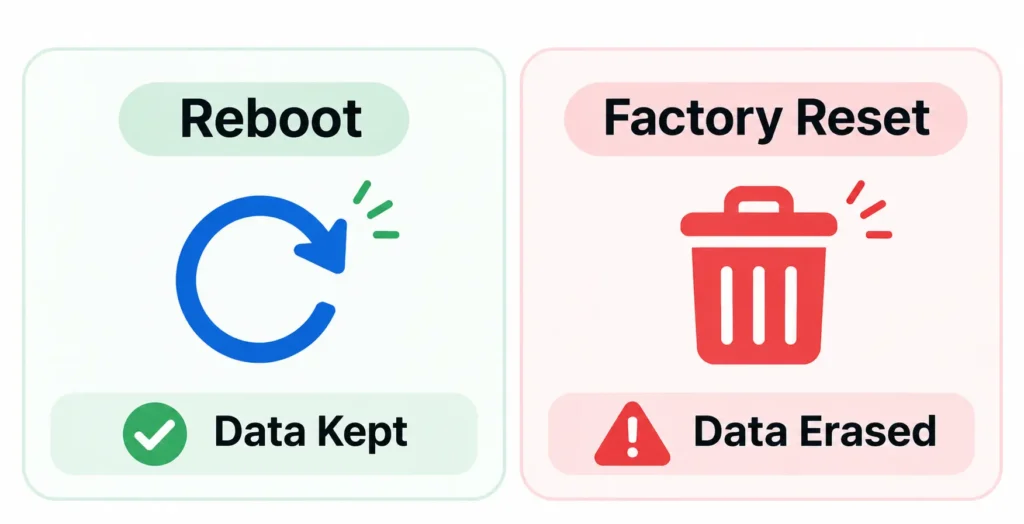
Sonos does not suggest a factory reset just to fix a problem. The company says to reboot first. A hard reset also wipes the diagnostic data that Sonos support uses to help you. So save it for the right moment.
| Question | Reboot (soft reset) | Factory reset (hard reset) |
| What it does | Restarts the speaker | Erases all settings |
| Your data | Kept | Deleted |
| Can you undo it? | Yes | No |
| Best for | Glitches, offline speaker, frozen audio | Selling, gifting, failed setup |
How do you reboot a Sonos speaker?
To reboot a wired Sonos, unplug it for 10 seconds, plug it back in, and wait about one minute. For portable models, hold the power button for five seconds to turn it off, then turn it back on. Nothing is deleted.
Knowing how to reboot a Sonos speaker covers most daily issues. If your speaker left your system or dropped off SonosNet, the private network your speakers share, a reboot often brings it back. You can also restart many speakers from the Sonos app if the app can still see them.
How do you factory reset a Sonos speaker?
To factory reset most Sonos speakers, remove power, then hold the reset button while you plug the power back in. The button is the Join, Bluetooth, or Play/Pause button, based on your model. Hold until the light flashes orange and white, then release at green.
Find your model below. Each group uses a different button, so follow the steps that match your speaker.
Era 100, Era 300, Arc Ultra, and Beam Ultra (Bluetooth button)
- Unplug the power cord.
- Press and hold the Bluetooth button on the back while you plug the power back in.
- Keep holding until the light flashes orange and white.
- Let go when the light flashes green. The reset is done.
These steps cover the Era 100, Era 100 Pro, Era 100 SL, and Era 300. If you looked up how to do a Sonos Era 100 factory reset, this is it.
Sonos One, Five, Beam, Arc, Play:5, Sub, Amp, and older models (Join button)
- Unplug the power cord.
- Press and hold the Join button (it looks like a sideways 8) while you plug the power back in. If your speaker has no Join button, hold the Play/Pause button or the Mute button instead.
- Keep holding until the light flashes orange and white.
- Let go when it flashes green.
Use these steps to reset a Sonos One, One SL, Five, Beam, Beam Gen 2, Ray, Arc, Play:1, Play:3, Play:5, Playbar, Playbase, Sub, Sub Mini, Amp, Port, Connect, Connect:Amp, and Boost.
Move and Move 2 (power off, then Join or Bluetooth)
- Take the Move or Move 2 off its charging base.
- Hold the power button on the back for five seconds to turn it off. You will hear a chime.
- Now hold the Join button on the Move, or the Bluetooth button on the Move 2.
- While you hold that button, turn the speaker back on with the power button, or by setting it on the base.
- Keep holding until the light flashes orange and white, then green.
That is the full factory reset for the Sonos Move 2 and the first Move.
Roam, Roam 2, and Roam SL (power off, then Play/Pause)
- Hold the power button on the back for five seconds to turn the Roam off. The light goes dark and you hear a chime.
- Hold the Play/Pause button, then press and release the power button.
- Keep holding Play/Pause until the light flashes orange and white.
- Let go at green.
These same steps show you how to reset a Sonos Roam, Roam 2, and Roam SL.
Sonos Play (2026 portable model)
- Take the Sonos Play off the charging base.
- Hold the power button for five seconds to turn it off.
- Hold the Play/Pause button while you hold the power button again for about five seconds, until the light flashes orange and white.
- Let go at green.
Sonos Ace and Ace Ultra headphones (power and USB-C)
- Connect a USB-C cable to a power source, like a laptop or wall plug, but do not plug it into the headphones yet.
- Turn the headphones on.
- Hold the power button, then right away plug the USB-C cable into the port on the left ear cup.
- Keep holding power until the light flashes white, which can take up to 10 seconds.
- Unplug the cable and let go. The headphones go into pairing mode with a blue light.
After this, open your phone’s Bluetooth list and pick Forget for the Sonos Ace, then pair it again.
IKEA Symfonisk (Join button)
The IKEA Symfonisk speakers use Sonos parts inside, so they reset like the older models. Unplug the power, hold the Join button while you plug it back in, and let go when the light flashes green.
Which Sonos reset button do you use?
The button changes by model, which is why people search for the right Sonos reset button. This quick chart shows which button to hold and how the speaker gets power during the reset.
| Model group | Button to hold | Powered how | Light pattern |
| Era 100, Era 300, Arc Ultra, Beam Ultra | Bluetooth button | Plug in power while holding | Orange and white, then green |
| One, Five, Beam, Arc, Play:1/3/5, Sub, Amp, Port, Boost, Playbar, Playbase, Connect | Join button (or Play/Pause, or Mute) | Plug in power while holding | Orange and white, then green |
| Move, Move 2 | Join (Move) or Bluetooth (Move 2) | Turn on while holding | Orange and white, then green |
| Roam, Roam 2, Roam SL | Play/Pause | Press power while holding | Orange and white, then green |
| Sonos Play | Play/Pause and power | Hold power while holding | Orange and white, then green |
| Sonos Ace, Ace Ultra | Power and USB-C | Plug USB-C while holding | Flashing white, then blue |
| IKEA Symfonisk | Join button | Plug in power while holding | Orange and white, then green |
What do the status light colors mean during a reset?
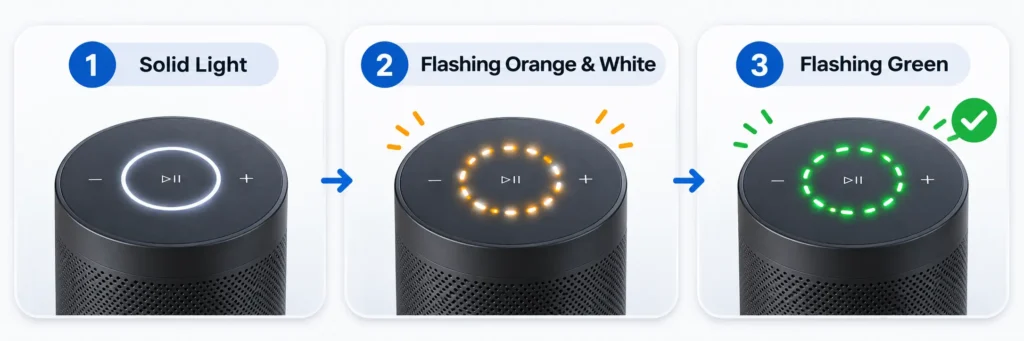
During a reset, the status light flashes orange and white to show the process is running. When the light flashes green, the reset is complete and the speaker is ready to set up again. A solid white light usually means a normal reboot finished.
Watch the light the whole time. If you let go of the button before the orange and white flash starts, the reset will not take. The green flash is your sign that the speaker is back to its factory state and ready to add again.
What do you do after a factory reset?
After a factory reset, open the Sonos app and tap Add Product to add the speaker back. Reconnect your Wi-Fi, add your music services, and run TruePlay. A full system reset deletes your data for good, so add each speaker back one at a time.
A factory reset removes the speaker’s registration and your My Sonos content. If you are selling the speaker or passing it to a new owner, that is the point, since a clean transfer of ownership should leave none of your account behind. If your speaker is old, Sonos also runs a Trade Up program that gives you credit toward a new one. If you are keeping the speaker, the app sets it up again on the current S2 system. Once the sound is back, test it. Play a song you know well, or run the free Speaker Sound Test to check that both sides are clear and balanced.
What if your Sonos will not reset or the light stays flashing white?
If an older Sonos keeps flashing a continuous white light after a reset, the process got cut off. Connect the speaker to your router with an Ethernet cable to let the reset finish, then set it up again in the Sonos app.
Older models like the Boost, Connect, Connect:Amp, Play:1, Play:3, and Sub reset slower than newer ones. If the power blinks off part way through, they can get stuck. An Ethernet cable gives them a steady link to finish the job. One more common slip is timing. Many people let go of the button too soon. Hold it until the orange and white flash begins, not before. Also know this: a very old speaker made before 2015 runs the older S1 system, and a factory reset will not move it onto the newer S2 system.
Should you reset the Sonos app instead of the speaker?
If the Sonos app is slow, crashing, or shows a no system found error, reset the app, not your speakers. In the Sonos app, choose Reset App. On a computer, open Help and pick Reset Controller. Your speakers and settings stay safe.
Many sound problems are really app problems. Back in 2024, a big Sonos app update caused trouble for millions of owners, and some people wiped their speakers when the app was the real cause. A reset of the Sonos app or controller clears those glitches and leaves your hardware alone. Try it before you touch any speaker button.
Get your Sonos sounding right again
A reset is a simple fix once you know which one you need. Start with a reboot, save the factory reset for selling, gifting, or a setup that will not finish, and match the button to your model. After you add your speaker back, play a track you know well and run the free Speaker Sound Test to confirm the audio is clear on both sides. Want to learn more about your system, from models to daily care? Read our full guide on what Sonos speakers are and how they work.
Frequently Asked Questions
Will a factory reset delete my Sonos settings and playlists?
Yes. A factory reset erases your registration, saved settings, My Sonos content, and linked music services, and you cannot get them back. A reboot is different. It restarts the speaker and keeps everything.
Should I factory reset my Sonos to fix connection problems?
No. Sonos does not suggest a factory reset to fix issues. Reboot the speaker and reset the app first. A hard reset also erases the diagnostic data that Sonos support may need to help you.
How do I reset a Sonos speaker to sell it or give it away?
Factory reset it so your account and data are gone. Power it off or unplug it, hold your model’s reset button while powering on, and let go when the light flashes green. The new owner can then set it up fresh.
Which Sonos reset button do I hold?
It depends on the model. Use the Bluetooth button on the Era speakers and newer soundbars, the Join button on most older speakers, and the Play/Pause button on the Roam and Play. Check the chart above for yours.
How long does a Sonos factory reset take?
Most speakers reset in 30 to 60 seconds. You will see orange and white, then green. Older models like the Boost, Connect, and Play:1 can take longer, so give them extra time.
How do I reset my Sonos for a new Wi-Fi network?
You usually do not need a factory reset. Open the Sonos app and change the Wi-Fi in your system settings. Reset the speaker only if the app cannot reconnect it after that.
Can I reboot a Sonos without unplugging it?
Yes, on many models. If the Sonos app can still see the speaker, you can restart it from the app. If the app cannot reach it, pull the power for 10 seconds instead.