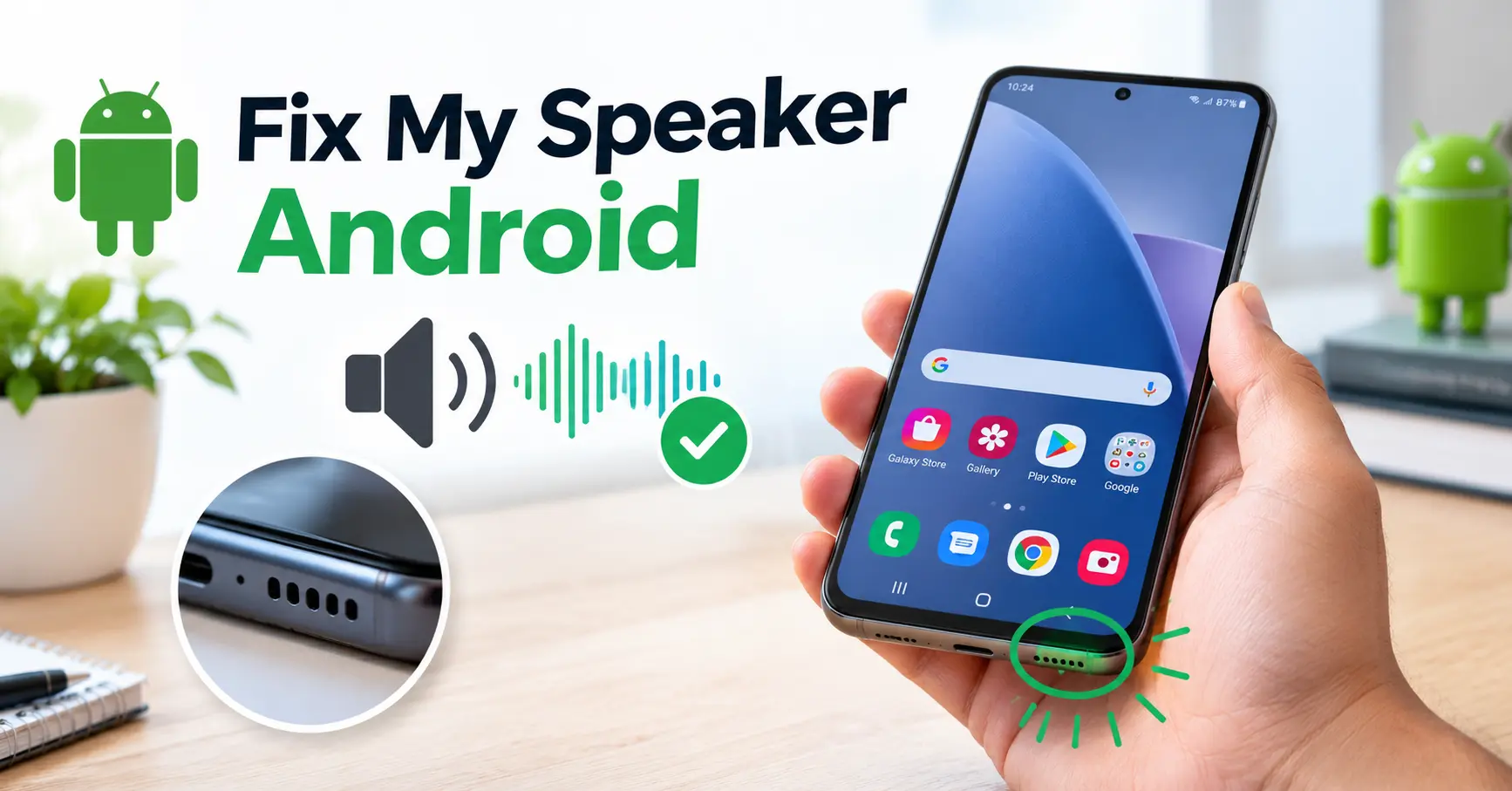
Fix My Speaker works on all Android phones directly in your browser. No app needed. Open the tool, turn volume to 100%, and tap play to run the 165Hz ejection tone. Hold your phone with the speaker port facing down. For water in an Android speaker, run the tool for 2 to 3 minutes. If the sound is muffled but no water got in, check your Bluetooth routing and Android volume limiter settings first before running the tool.
Your Android speaker sounds muffled after getting wet, or the sound has dropped for no clear reason. You do not need a new phone or a repair shop visit yet.
Fix My Speaker is a free android speaker cleaner online tool that runs straight in your Chrome or Samsung Internet browser. No download. No account. No app install. It uses 165Hz acoustic vibration to push water and pocket lint out of the speaker grill in a few minutes.
This page confirms that Fix My Speaker works on your Android device, walks through the exact steps, and gives brand-level tips for Samsung Galaxy, Xiaomi, Redmi, Google Pixel, OnePlus, Realme, and Motorola. If your android phone speaker is not working after water exposure, or the audio is just muffled out of nowhere, read through this page to fix it fast.
Does Fix My Speaker Work on Android?
Yes. Fix My Speaker is a browser-based free android speaker fix tool. It runs on any Android phone or tablet in Chrome, Samsung Internet, Firefox, or any modern Android browser. There is nothing to install and no sign-in required.
It is compatible with all major Android brands:
- Samsung Galaxy (S series, A series, Z Flip, Z Fold, Note series)
- Xiaomi, Redmi, and POCO
- Google Pixel
- OnePlus, Realme, and Oppo
- Motorola and Vivo
- Any Android device with a working speaker and a browser
The tool plays a 165Hz sine wave, which is the resonant frequency most speaker assemblies respond to best. This creates pressure oscillation inside the speaker chamber. The speaker diaphragm moves at its widest range of motion, pushing trapped water droplets and dust particles through the speaker grill. The process is safe for the speaker cone and takes less than three minutes.
How Do You Use Fix My Speaker on Android?
To use Fix My Speaker on Android, open the website in your Chrome or Samsung Internet browser, set your phone volume to maximum, and tap the play button. Hold the Android device with the speaker port angled downward so gravity assists the water ejection process.
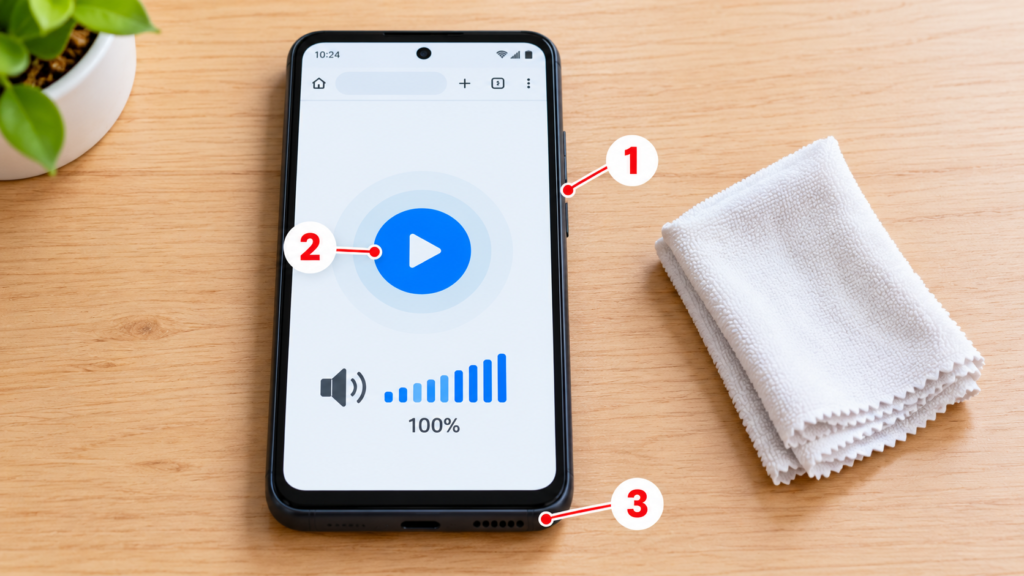
Follow these steps:
Step 1: Open the tool in your Android browser
Go to fixmyspeaker.tech on your Android phone. The page loads the acoustic vibration tool right away. There is no account needed and no download required.
Step 2: Check your Android volume limiter
Press your volume buttons to raise the media volume to 100%. Many Android phones have a hidden media volume limiter that caps output below maximum. To turn it off, go to Settings > Sounds and Vibration > More Sound Settings > Media Volume Limiter and switch it off. The android speaker water eject process only reaches full power at maximum speaker output.
Step 3: Tap the eject button
Tap the play button on the tool. The 165Hz tone starts playing through your speaker. This sound wave causes the speaker cone to vibrate at its highest possible excursion.
Step 4: Hold your Android with the speaker facing down
Tilt the phone so the bottom speaker grill points toward the floor. Gravity helps the sound wave push water droplets out. You may see small water beads form on the outside of the grill within the first 30 seconds.
Step 5: Run for 2 to 3 minutes
Keep the tone going for at least two full minutes for a minor splash. If the phone was fully submerged, run two or three 2-minute cycles with a 30-second break between each one. Wipe the speaker grill with a dry cloth between cycles.
After running the tool, test the sound quality before putting the phone down.
Android Speaker Fixes by Brand
Each Android brand handles audio hardware a little differently. Below are brand-specific tips to help you get the best result from the android speaker water eject process on your exact device.
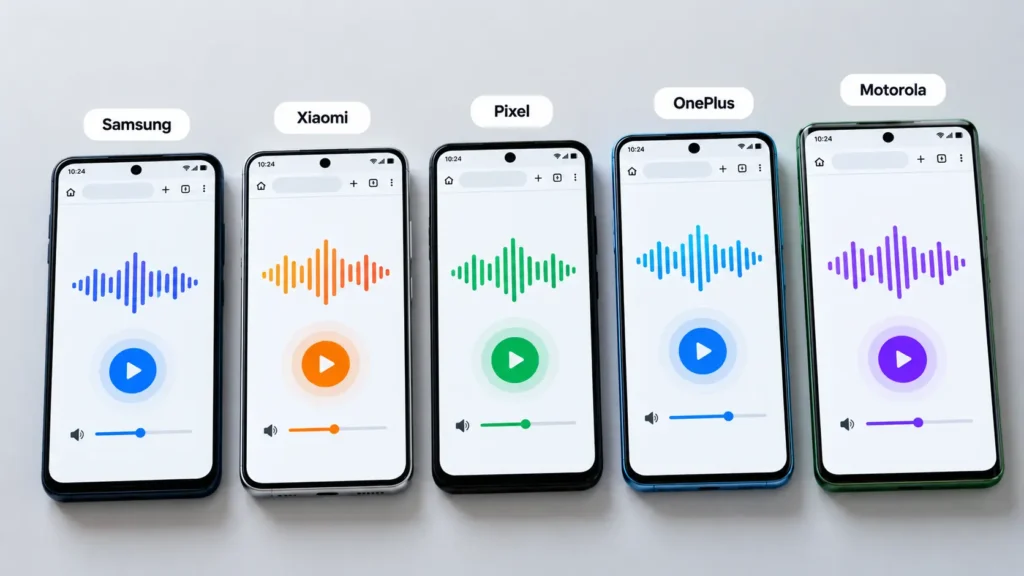
Samsung Galaxy
Samsung Galaxy phones do not have a built-in water eject feature. This surprises many Galaxy users because Samsung Galaxy Watches do include a Water Lock mode that plays a tone to push water out. On Galaxy phones, no such setting exists in the One UI menus.
If your Galaxy shows a “Moisture Detected in Charging Port” warning after getting wet, do not force a charging cable into the port. Use wireless charging while the drying process runs. Running Fix My Speaker helps clear micro-droplets near the USB-C port and speaker area faster.
For the Galaxy S, A, Note, Z Flip, and Z Fold series, use Sound Wave mode and tilt the phone at roughly a 45-degree angle with the bottom speaker pointing toward the floor. Samsung’s acoustic chambers tend to run deeper than budget models, so two full cycles often give better results than one.
After cleaning, go to Settings > Accessibility > Hearing Enhancements > Left/Right Sound Balance to confirm both speaker channels are equal.
Xiaomi, Redmi, and POCO
Xiaomi devices running MIUI or HyperOS have a built-in “Clear Speaker” feature. Find it at Settings > Additional Settings > Clear Speaker. It runs a short 30-second audio burst.
That built-in burst is useful for light dust, but 30 seconds is often too short after a puddle drop or shower splash. Fix My Speaker runs continuous 2 to 3 minute cycles with both Sound Wave and Vibration modes, which covers heavier water saturation that the built-in tool cannot clear.
For POCO gaming phones with large stereo grilles on both sides, run the Vibration mode first to shake stubborn pocket lint from the dual speaker openings, then switch to Sound Wave mode to finish the water ejection.
Google Pixel
Google Pixel phones run stock Android and have no built-in speaker cleaner or water eject feature. Before running Fix My Speaker on a Pixel, turn Bluetooth completely off. Pixel devices auto-connect to nearby Bluetooth devices quickly, and your audio can quietly route to a connected speaker or earbuds without any alert.
Once Bluetooth is off, run the tool normally. The clean sound profile of Pixel speakers makes it easy to hear the improvement right after cleaning. Test with a voice call or a YouTube video at full volume to confirm the result.
OnePlus, Realme, and Oppo
Most OnePlus, Realme, and Oppo phones run OxygenOS or ColorOS and feature a single bottom-firing speaker. Hold the phone strictly vertical for these devices. Tilting it sideways reduces how much gravity helps and slows the water ejection process.
After cleaning the bottom speaker, check the top earpiece mesh separately. On Realme and Oppo phones especially, the earpiece collects facial oils and sweat during calls and workouts. Gently brush the top mesh with a soft dry toothbrush while the tone plays to break any oily film blocking that speaker.
Motorola
Budget Motorola models often have a mono speaker setup with a single grill. The speaker enclosure on budget devices is smaller, which means water tends to stay trapped a little longer. Run Fix My Speaker for a full 3 minutes rather than 2, and repeat the cycle one more time if the sound is still muffled after the first pass.
Why Does My Android Speaker Sound Muffled and Is It Really Water?
Android speaker muffling has several causes beyond water. Bluetooth audio routing to a paired device, Android’s media volume limiter, a stuck headphone mode after unplugging wired earphones, or DND mode can all reduce speaker output. Check these software causes before assuming physical damage.
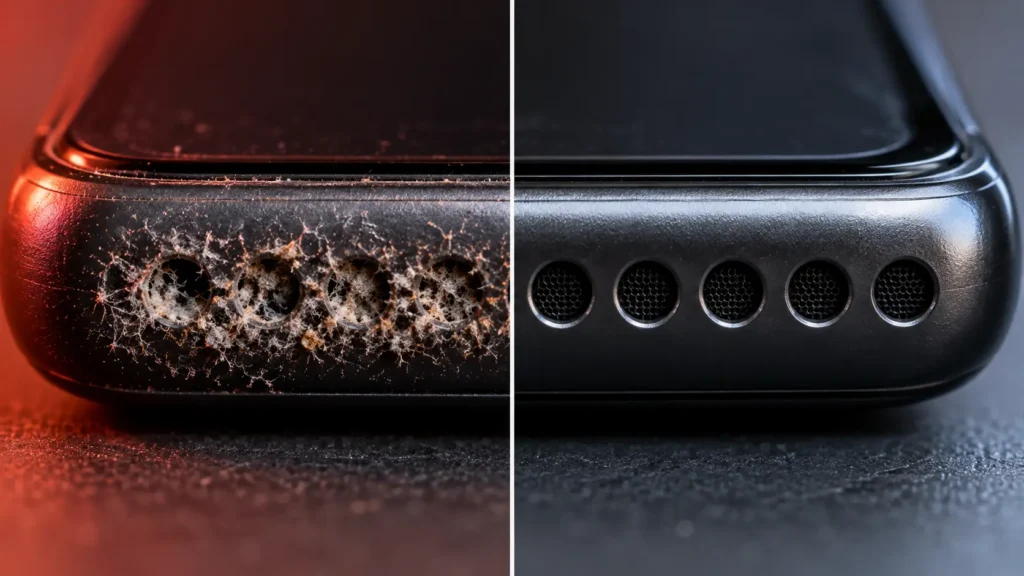
Software causes to check first:
- Bluetooth still paired to a nearby device. Go to Settings > Connections > Bluetooth and disconnect all devices. Your audio may be routing to headphones you forgot about.
- Media Volume Limiter turned on. Check Settings > Sounds and Vibration > More Sound Settings. A limiter can cap your volume at 80 percent without showing any visible sign.
- Do Not Disturb (DND) mode. Check your notification bar for the DND icon. Some DND profiles silence media audio.
- Stuck headphone mode. After removing wired earphones, Android sometimes stays in headphone mode. Clean the USB-C port with a wooden toothpick to clear any ghost connection.
- Samsung’s Separate App Sound feature. On Galaxy phones, this setting can route one app to a different audio output. Check Settings > Sounds and Vibration > Separate App Sound.
- A rogue app overriding audio. Boot into Safe Mode by holding the power button and tapping “Safe Mode.” If sound works in Safe Mode, a third-party app is causing the problem.
Physical causes to check next:
- Water or moisture sitting on the speaker diaphragm after a splash
- Pocket lint packed into the speaker grill after weeks of carrying the phone in a pocket
- A phone case partially covering the speaker port
- Dust from construction or outdoor environments blocking the speaker cone
If the muffled audio started right after water contact, run the fix my speaker android tool. If it came on slowly with no water history, the Vibration mode and a soft brush will likely clear the lint buildup causing the drop in sound quality.
Data from Asurion shows a nearly 50 percent increase in water-related phone issues during summer months compared to the rest of the year. Acting fast before water reaches the logic board gives the best chance of a full audio recovery without a repair visit.
What Should You Do Before Running Fix My Speaker on Android?
A quick pre-use checklist takes less than one minute and protects your Android device during the cleaning process.
- Disconnect all Bluetooth devices. Confirm that no headset, speaker, or earbud is receiving audio before tapping play.
- Remove your phone case. Cases can trap water between the case body and the phone, pushing moisture back into the speaker port during vibration. Remove it completely.
- Wipe the exterior dry. Use a dry lint-free cloth to wipe down the outside of the phone. This stops surface water from running back into the speaker grill while the ejection cycle runs.
- Unplug the charging cable. Do not run the tool while the phone is connected to power if the device is still wet from water damage. Liquid and electricity near a USB-C port is a risk.
- Set volume to 100%. The speaker diaphragm only reaches maximum excursion at full volume. Lower volume means weaker vibration and slower water removal.
- Wait 60 seconds after powering on. If your Android just came out of water, give it a full minute before starting the tool to let any immediate short-circuit risk settle.
How Do You Test Your Android Speaker After Using Fix My Speaker?
After running the free android speaker fix tool, verify the result before deciding if a second cleaning cycle is needed.
- Play a video at full volume. Open YouTube or your music app and listen for any muffled, crackling, or underwater-sounding audio.
- Make a speakerphone call. Test with a real or test call on speakerphone. Voice audio uses a different frequency range than music and reveals blockages the music test might miss.
- Run a speaker frequency sweep. Use the Speaker Sound Test page at fixmyspeaker.tech to check bass, mid-range vocals, and treble output across the full frequency range.
- Check stereo balance. Use the Stereo Sound Tester to confirm both left and right speaker channels are working equally. Uneven balance often means one side still has a blockage.
If the speaker still sounds muffled after two full cycles, place the Android phone in a sealed zip-lock bag with silica gel packets for 24 hours. The 165Hz tool clears the main water exit path through the speaker grill. Silica gel then pulls the remaining deep humidity out of the internal components.
For crackling that stays even at low volume, stop using the tool. Crackling at all volume levels often signals a physical tear in the speaker diaphragm or debris touching the voice coil, which needs a technician.
Run Fix My Speaker on Your Android Right Now
Your Android speaker has a working fix. Open Fix My Speaker in your Chrome or Samsung Internet browser, set volume to 100%, hold the phone speaker-down, and tap play. The full process takes under 3 minutes.
If you are not sure whether your speaker has water in it or a dust buildup, run a free Speaker Sound Test first to hear exactly where the audio problem is coming from.
Ready to eject water and restore clear sound? Use the Fix My Speaker android speaker water eject tool now.
Frequently Asked Questions
Does Fix My Speaker work on all Android phones?
Yes. Fix My Speaker is a browser-based tool that runs on any Android device using Chrome, Samsung Internet, Firefox, or any modern browser. No download is required. It works with all Android brands including Samsung, Xiaomi, Google Pixel, OnePlus, Realme, Motorola, and others with an external speaker.
How do I remove water from my Android speaker using Fix My Speaker?
Open fixmyspeaker.tech in your Android browser. Set volume to 100%. Hold the phone with the bottom speaker facing downward. Tap the play button and run the 165Hz tone for 2 to 3 minutes. You may see water beads exit the speaker grill. Wipe away droplets with a dry cloth and repeat if the audio is still muffled.
Does Xiaomi’s built-in Clear Speaker feature replace Fix My Speaker?
Xiaomi’s built-in Clear Speaker feature, found in Settings > Additional Settings, runs a 30-second audio burst. It works well for light dust and minor splashes. Fix My Speaker runs continuous 2 to 3 minute cycles with multiple modes, which covers heavier water saturation better than the built-in 30-second burst alone.
Is Fix My Speaker free to use on Android?
Yes. Fix My Speaker is completely free to use on Android. There is no app to download, no account required, and no fees of any kind. Open the website on your Android browser and use the tool as many times as needed.
Why is my Samsung Galaxy speaker muffled after water exposure?
Water creates a physical barrier across the speaker mesh that blocks sound waves from passing through clearly. Samsung Galaxy phones do not have a built-in water eject feature. Running a 165Hz ejection tone with Fix My Speaker, while holding the phone with the speaker port pointing down, is the recommended first step before trying any other method.
What should I do if my Android speaker still does not work after using Fix My Speaker?
If audio stays muffled after multiple cycles, check Android software settings first. Turn off Bluetooth, disable DND mode, and check for an active Media Volume Limiter under Sounds and Vibration. If the speaker produces no sound at all volume levels, place the phone in silica gel for 24 hours, then visit a technician if the problem continues.
Can I fix my Android speaker without downloading an app?
Yes. Fix My Speaker runs in your Android browser without any app install. Open the website, tap play, and the tool uses your phone’s own speaker hardware to generate the 165Hz cleaning frequency. No account, no install, and no in-app purchases are required.