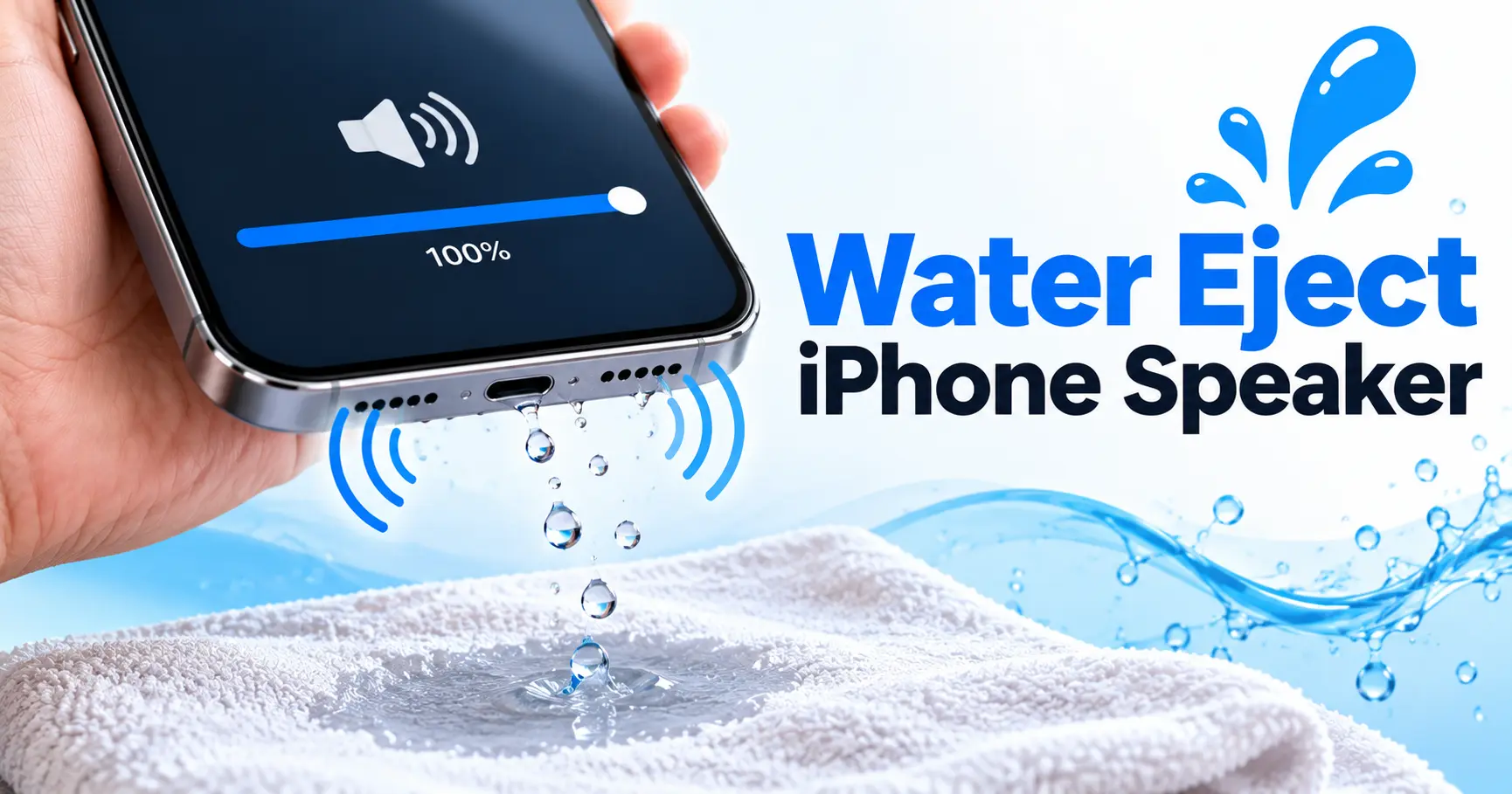
iPhones do not have a built-in water eject feature, but three methods work reliably: the Water Eject Siri Shortcut (plays a 165Hz tone through your speaker), a browser-based tool like Fix My Speaker (no installation needed, the fastest option in an emergency), or a dedicated iOS app. Before using any method, disconnect charging cables, remove your case, wipe the phone dry, and hold it with the speaker grille pointing downward.
Your iPhone just got wet. The speaker sounds like it is playing underwater. That muffled, gurgling sound means water is trapped in the speaker grille. Your phone may carry an IP68 rating, but iPhones have no built-in water eject feature the way Apple Watch does. The good news: three methods work well for iphone speaker water removal, and one takes zero setup time. Liquid damage makes up 35% of all smartphones repaired worldwide, according to IDC data, and Asurion found an 80% jump in water-related phone issues between 2023 and 2024. Speed matters.
This guide covers all three methods, what to do in the first 60 seconds, and which steps work best for your specific iPhone model.
What Should You Do First When Your iPhone Gets Wet?
Before you try any water eject method, run through these five steps. They take less than 60 seconds and make a real difference in how well the eject works. A Hydrosorbent Dehumidifiers survey of over 1,000 smartphone users found that 40% had no idea what to do when their phone got wet. These steps remove that guesswork.

- Disconnect all cables right away. Pull out your charging cable. A wet charging port plus electrical current corrodes the metal pins inside the port within minutes. Electrolysis starts fast.
- Remove your phone case. Water often gets trapped between the case and the phone body. Pulling the case off stops extra water from sitting against the speaker grille.
- Wipe the outside dry. Use a clean, lint-free cloth. Wipe the speaker grille, the edges, and all the ports. Do not push water back into the openings.
- Point the speaker grille down. Hold your iPhone so the bottom speaker faces toward the floor. Gravity helps the eject process. Water moves out through the grille, not deeper into the body.
- Do not shake the phone. Shaking turns still water droplets into fast-moving liquid inside the phone. That liquid can reach the camera sensor, the logic board, or internal audio contacts.
Check your audio symptoms first at fixmyspeaker diagnostics to confirm what kind of issue you are dealing with before picking a method.
Does iPhone Have a Built-In Water Eject Feature?
Standard iPhones do not have a built-in water eject feature. The Apple Watch Series 2 was the first Apple product to include one. Apple COO Jeff Williams announced it at the 2016 Apple event, saying: “At the end of the workout we use the speaker itself to eject the water.” The Apple Watch Water Lock feature plays tones through the speaker to push water out through the speaker grille. Apple never carried this into iPhone software.
Some newer iPhones running recent iOS versions show a “Speaker Drying” prompt. You may find it in Settings under the Accessibility section. This prompt mainly targets the charging port, not the speaker grille. It also does not appear on every iPhone model or iOS version.
What this means for you: a third-party solution is your best path. There are three solid options, ranked by how quickly you can start them:
| Solution | Setup Time Needed | Works Without Pre-Installing? |
| Browser-based web tool | 0 seconds | Yes |
| Water Eject Siri Shortcut | Must install before the emergency | No |
| iOS app | Must download before the emergency | No |
See how the frequency method works at fixmyspeaker how-it-works.
Method 1: How to Use the Water Eject Siri Shortcut on iPhone
The water eject iphone shortcut is a free tool built for the iOS Shortcuts app. Developer Josh0678 created it based on the same acoustic principle as the Apple Watch Water Lock system. It plays a low-frequency sound at 165Hz for about 12 seconds. This vibrates the speaker diaphragm and pushes liquid out through the speaker grille.

How to Install the Water Eject Shortcut
- Open Safari on your iPhone.
- Go to shortcutsgallery.com and search for “Water Eject.”
- Tap Get Shortcut.
- Tap Add Shortcut. It will appear in your Shortcuts app library.
- If your iPhone warns you about untrusted shortcuts, go to Settings > Shortcuts and turn on Allow Untrusted Shortcuts.
The water eject shortcut iOS compatibility starts at iOS 12 and later. It runs on iPhone 5s and all newer models.
How to Run the Shortcut (Shortcuts App or Siri)
Option A: Open the Shortcuts App
- Open the Shortcuts app on your iPhone.
- Find the Water Eject shortcut.
- Tap it.
- When the prompt appears, tap Begin Water Ejection.
- Hold your iPhone with the speaker grille facing down while the tone plays.
- Wipe expelled water droplets from the grille with a dry cloth after each run.
Option B: Use Siri Voice Command Say “Hey Siri, Water Eject.” When the prompt appears, tap Begin Water Ejection. This hands-free option helps when your phone screen is wet and hard to tap accurately.
You will hear a tone and may see small water droplets appear at the speaker grille. Wipe them away as they come out.
Shortcut Not Showing Up? Common Fixes
- Check that your iOS version is 12 or later. Go to Settings > General > About.
- If the Shortcuts app is missing, download it free from the App Store.
- If Siri does not recognize the command, open the Shortcuts app manually and tap the shortcut from there.
- Make sure Allow Untrusted Shortcuts is turned on in Settings > Shortcuts.
- On some newer iOS versions, the Water Eject shortcut is listed under Starter Shortcuts inside the app. Search for it there if it does not appear in your main library.
Method 2: How to Eject Water from iPhone Speaker Using a Web Tool
Here is the problem with the Siri Shortcut: you have to install it before the emergency. If your iPhone just went into water and you never set the shortcut up, installing new software on a wet phone under stress is not easy or reliable.

A browser-based tool removes that problem entirely. Fix My Speaker runs directly in your browser. No download. No account. No App Store. You can start in under 10 seconds from the moment you need it.
Steps to use Fix My Speaker to eject water from your iPhone speaker:
- Open Safari or Chrome on your iPhone.
- Go to fixmyspeaker.tech.
- Set your iPhone volume to 100%. This step is required. Lower volume does not create enough speaker cone movement to push water out through the grille.
- Tap the Eject button on the screen.
- Hold your iPhone with the bottom speaker grille tilted slightly toward the floor.
- Keep the phone steady while the tone plays. You should feel the vibration in your hand and may see small droplets appear at the grille.
- After each cycle, wipe the grille with a dry cloth to remove expelled water.
- Run 2 to 3 cycles for minor splashes. Run 5 to 10 cycles for a full submersion, with 30-second breaks between each.
Fix My Speaker uses the same 165Hz resonant frequency that the Siri Shortcut and Apple Watch use. The difference is no planning required. It works the moment you open your browser.
For iPhone-specific holding and positioning instructions, visit fixmyspeaker devices.
Method 3: Water Eject Apps for iPhone
Several iOS apps on the App Store offer speaker water removal and iPhone speaker water ejection features. Apps like Sonic and dedicated water eject apps give you more control over the frequency range, duration, and volume. Some also add haptic vibration, which helps shake water loose from the speaker grille alongside the sound waves.

When do apps make sense? An app is a good pick when you work near water often and want a speaker cleaning tool ready before anything happens. Some apps log your cleaning sessions and include speaker health checks.
What to look for:
- A free tier that covers basic iphone water eject functions (not everything behind a paywall)
- Frequency control in the 140Hz to 200Hz range
- An easy interface that works with wet fingers
- Positive App Store reviews from real users with water-damage experiences
Keep in mind: like the Siri Shortcut, all apps require a download before the emergency. If you never installed one, the water eject iphone free option is to go straight to the browser-based version at fixmyspeaker.tech. No download, no cost, nothing pre-installed needed. It is the simplest way to eject water iphone speaker problems on any model.
What Frequency Removes Water from iPhone Speakers?
The most effective frequency for removing water from iPhone speakers is 165Hz. This is the resonant frequency of water sitting in a typical smartphone speaker grille. It creates the right amount of speaker diaphragm movement to break the water’s surface tension and force the droplets out through the grille.
Where did 165Hz come from?
A Reddit user with the name “PointlessPankcake” discovered it in 2016. After taking his iPhone 7 into the shower, he used the free Sonic app to test different frequencies on the trapped water in his speaker cavity. At 165Hz, he watched water droplets bounce out of the speaker grille in real time. He shared his find online, and it became the standard resonant frequency used by water eject tools.
The 165Hz tone sits in a sweet spot between two extremes:
- Too low (below 50Hz): Creates strong body vibration but moves very little air. The water shakes but does not exit the grille.
- Too high (above 5,000Hz): Moves air quickly but cannot push the mass of a water droplet. The droplets are too heavy for high-frequency airflow to shift.
- 165Hz: Combines solid speaker cone excursion with enough airflow to carry droplets out through the speaker grille. It targets both the surface tension of the water and its physical weight.
Some tools sweep from 165Hz up to 440Hz in a dual-frequency pass. This wider range targets both surface-level liquid and fine dust or debris deeper in the speaker cavity.
Why Not Just Shake or Blow Into the Speaker?
Shaking feels like a quick fix. It is not. When you shake your iPhone, still water droplets turn into moving liquid inside the body. That liquid can reach the camera sensor, audio contacts, or the logic board. These parts do not respond to sound ejection.
Blowing directly into the speaker grille adds moisture. The air from your mouth contains humidity. That extra moisture adds to the liquid damage problem instead of reducing it. Use the sound frequency method to create controlled, dry airflow through the grille instead.
How Long Should You Run Water Eject on Your iPhone?
The right run time depends on how wet the phone got.
| Situation | Recommended Run Time |
| Light rain or minor splash | 1 to 2 minutes |
| Fell in a sink or puddle | 3 to 5 minutes in 2-minute cycles |
| Full submersion (toilet, pool, bath) | 5 to 10 minutes in 2-minute cycles |
Always take a 30-second break between cycles. Two things happen during that break. First, it lets the speaker voice coil cool down slightly. Running the tone without breaks can make the coil too warm. Second, water droplets that were partially pushed out pool back together. The next cycle can then push that pooled water out in one go. Apple designed the Apple Watch water eject system with the same pause-and-repeat logic for this reason.
Between each cycle, hold your iPhone speaker-grille-down and gently tap it against your palm. Then wipe the grille with a dry cloth. You will often see a faint ring of moisture on the cloth. Keep running cycles until the cloth stays dry.
Water Eject Not Working? What Else Can You Do?
If the speaker still sounds muffled after several water eject cycles, the sound tool has done as much as it can from the outside. The leftover moisture is likely deeper inside the phone, past where sound waves can reach.
The best next step is silica gel.
- Find several silica gel packets. These are the small white pouches packed inside shoe boxes, electronics packaging, or bags. You can also buy them cheaply online.
- Place your iPhone and the silica gel packets together in a sealed plastic zip-lock bag or an airtight container.
- Leave it sealed for 24 hours. Silica gel pulls humidity out of the trapped air space and out of the phone’s internal components.
The water eject tool clears water from the speaker grille. Silica gel absorbs the deeper moisture that sound waves cannot reach. Used back-to-back, they cover the full range of the problem.
Saltwater note: If your iPhone was in ocean water or any salty liquid, add one extra step before running any sound tool. Rinse the phone briefly under cool, clean tap water for 3 seconds. This washes away salt minerals. Salt crystals left behind keep corroding metal contacts even after the water dries. After the rinse, wipe dry and start the sound ejection process right away.
See the full comparison of water removal methods at fixmyspeaker diy-vs-sound.
When to Visit an iPhone Repair Technician
Stop the DIY process and go to a repair shop if any of these apply:
- Your iPhone will not turn on at all
- The phone gets warm or hot on its own without being charged
- You smell something burning near the phone
- You see green or white crust or discoloration around the charging port or speaker grille
These are signs of a shorted circuit or corroded motherboard. Sound ejection cannot fix those problems. A trained technician can open the device, clean the board, and check the components directly.
What NOT to Do When Your iPhone Speaker Gets Wet
These are the most common mistakes people make after getting their phone wet. Each one makes the problem worse.
| Method | Does It Work? | Risk Level | Verdict |
| Rice | No | Leaves starch particles near ports; contacts corrode during the 48+ hours you wait | Skip it entirely |
| Hair dryer or heat gun | No | Melts the adhesive seals holding the screen and back; risks battery swelling | Never use heat |
| Compressed air | No | Forces water deeper inside; can tear the speaker membrane | Avoid completely |
| Shaking the phone | No | Turns still droplets into moving liquid that reaches the logic board | Do not shake |
| Poking the speaker grille | No | Tears the fine mesh permanently; causes a permanent buzz in the speaker | Never insert anything |
| Charging while wet | No | Causes electrolysis in the charging port, corroding the pins within minutes | Wait until fully dry |
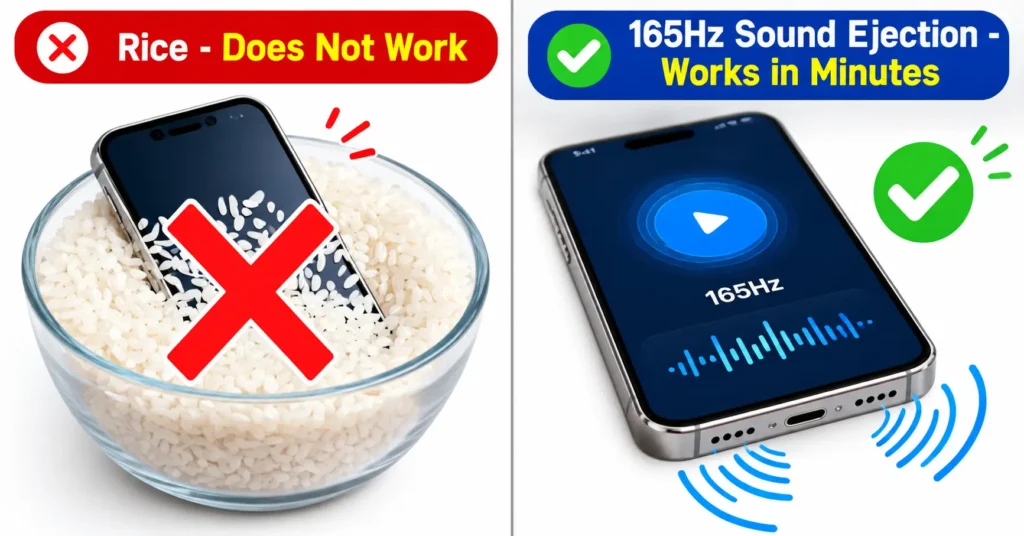
The rice method deserves special mention because it is the most shared piece of advice for wet phones on the internet. According to SquareTrade, water damage accounts for more than 25% of all accidental iPhone failures. The rice method is too slow to help. Rice absorbs ambient air humidity, not device-level water. It takes 48 or more hours to make any difference, and in that time, liquid damage inside the phone progresses. Rice grains can also get lodged near the USB-C or Lightning port. Use sound ejection and silica gel instead.
iPhone Water Eject by Model: Which Method Works Best?
The right approach depends on your specific iPhone model and its IP water resistance rating.
iPhone 7 and iPhone 8 (IP67)
The iPhone 7 was the first iPhone to carry an official IP67 water resistance rating. IP67 means it can handle up to 1 meter of water for up to 30 minutes. The speaker grille on these models is narrow, and two to three water eject cycles usually clear the speaker. Act quickly with these older models because they have lower liquid damage protection compared to later iPhones.
Tip: After running Fix My Speaker on these models, tap the bottom of the phone gently against your palm to help nudge stubborn droplets out of the narrow grille.
iPhone X, XS, and XR (IP67 and IP68)
These models have deeper acoustic chambers inside the phone body than the iPhone 7 and 8. Hold the phone at a 45-degree angle with the bottom speaker pointing toward the floor. Run more cycles than you would with the older models. The XR carries an IP67 rating, so treat it with the same urgency as the iPhone 7 and 8. The XS and XS Max carry IP68 and can handle a bit more depth.
iPhone 11, 12, and 13 (IP68)
The IP68 rating on these models means they can go deeper than IP67 before taking water damage. The main loudspeaker is the bottom-right grille. The bottom-left grille is the microphone, not the speaker. Focus the eject process on the bottom-right side first. Then flip the phone upside down to run a cycle aimed at the top earpiece speaker, which collects moisture during calls and workouts.
iPhone 14, 15, and 16 (IP68, Up to 6 Meters)
These are the most water-resistant iPhones Apple has released. The IP68 rating goes up to 6 meters of depth for 30 minutes. Even with this level of protection, the speaker grille still traps water after splashes and submersions. The eject process works the same way as other models. Run cycles, keep the phone tilted speaker-grille-down, and wipe between each cycle. Fix My Speaker works across every one of these iPhone models at fixmyspeaker devices.
AirPods and Wireless Earbuds
AirPods do not have a vibration motor, so the process is a little different than with an iPhone. Hold the earbud by the stem with the speaker mesh facing toward the floor. Play the 165Hz tone at full volume through the AirPod. While the tone plays, shake the earbud sharply downward in a fast snapping motion, like shaking down a thermometer. The sound breaks the surface tension holding the water against the mesh, and the shaking provides the centrifugal force to pull the droplet out. Always remove the silicone tip first so water does not collect inside it during the process.
Get Your iPhone Speaker Sounding Clear Again
Getting water out of your iPhone speaker does not require a repair shop visit or an app you have to think about downloading in advance. Fix My Speaker uses the same 165Hz acoustic frequency principle that audio engineers have used since the approach was first discovered in 2016. It runs in your browser, costs nothing, and works on every iPhone model from the iPhone 7 through the iPhone 16, right now.
Eject Water from Your iPhone Speaker: Free, No Install Required
Frequently Asked Questions
Does water eject work on all iPhone models?
The water eject method works on any iPhone that can play audio through its speaker. The Water Eject Siri Shortcut requires iOS 12 or later, which covers the iPhone 5s and all newer models. Browser-based tools and iOS apps work on any iPhone with a functioning speaker, regardless of which iOS version the phone runs.
Is the water eject method safe for iPhone speakers?
Yes. Playing a 165Hz tone through your iPhone speaker is safe. The frequency falls well within the standard audio operating range of 20Hz to 20,000Hz. To keep the speaker voice coil from getting too warm, take 30-second breaks between cycles. Do not loop the sound continuously for more than 10 minutes without a short rest.
Can I use water eject on AirPods?
Yes, but the steps differ from using it on an iPhone. AirPods do not have a vibration motor inside them. Hold the earbud by the stem with the mesh facing downward, play the ejection tone at full volume, and shake the earbud firmly downward in between bursts. Remove the silicone ear tip before you start so water does not pool inside it during the process.
Why does my iPhone speaker still sound muffled after water eject?
Leftover muffling after water ejection usually means deeper moisture remains inside the phone, past the speaker grille where sound waves can reach. It can also mean the speaker diaphragm has some physical damage. Seal the phone with silica gel packets in an airtight container for 24 hours. If the muffled sound stays after that, visit a professional repair shop. The audio contacts or speaker cone may need direct inspection.
Does iPhone have a built-in speaker drying mode like Apple Watch?
Standard iPhones do not have this feature. Apple Watch Series 2 and later models include Water Lock, which plays tones through the speaker to push out water. Apple never added a matching feature to iPhone software. Some iPhones on newer iOS versions show a “Speaker Drying” notification in Settings when water is detected in the charging port. That is a charging-port feature, not a full iphone speaker water removal tool.
How do I know if water is still in my iPhone speaker?
If water remains, audio sounds muffled, quiet, or distant, as if the phone is inside a bag. At higher volumes, you may hear crackling or buzzing as water vibrates against the speaker diaphragm. To test, play a music track with clear vocals and a strong bass line. If either sounds distorted or off, water may still be sitting in the speaker grille.
Can I charge my iPhone while using water eject?
No. Do not connect a wired charging cable to a wet iPhone. Electrical current through a wet charging port causes electrolysis, which corrodes the metal pins almost immediately. This can also trip the internal Liquid Contact Indicator strip inside the phone, which voids your standard hardware warranty. If you need power urgently, wireless Qi charging is far safer than a wired cable when the port is still damp.