
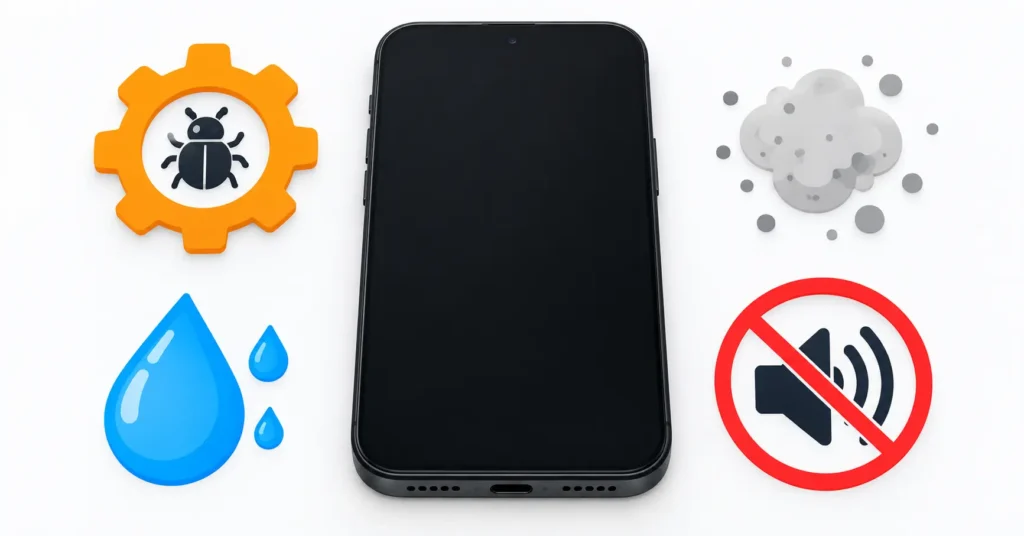
Most phone speaker problems come down to one of four causes: a settings issue (silent mode or Bluetooth routing), a software bug, a physical blockage from dust or lint in the grill, or water trapped inside the speaker chamber. Before visiting a repair shop, run through a quick checklist: check your volume and Bluetooth settings, restart your phone, and physically clean or eject water from the speaker. Most problems are fixable at home in under five minutes.
Your phone speaker just stopped working. Before you panic or pay for a repair, here is some good news: most phone speaker problems come from settings, a software glitch, or a physical blockage you can fix right now.
A 2023 Allstate Protection Plans survey found that 17% of American smartphone owners reported issues with their phone speaker that year. That is a large number, and most of them did not need a technician. Troubleshooting phone speakers does not have to mean a trip to the repair shop. This guide walks you through every cause and fix, from a muted volume setting to water trapped in the speaker grill, so you can restore clear audio fast.
What Is Causing Your Phone Speaker to Sound Off? Start Here
Identifying your symptom first saves time. Phone speaker problems fall into four groups: settings or software issues, physical blockage, moisture, and hardware damage. The Mobile Repair Association found that roughly 30% of audio complaints get resolved through simple physical cleaning alone. Matching your symptom to the right cause gets you to the fix without reading the whole guide.
Use this table to find your starting point:
| Your Symptom | Most Likely Cause | Jump to Fix |
| No sound at all | Silent mode, Bluetooth routing, or Do Not Disturb | Fix 1, 2, or 3 |
| Muffled or underwater sound | Water in speaker or dust in grill | Fix 5 |
| Crackling or buzzing at high volume | Debris on diaphragm, water, or hardware wear | Fix 5, then Fix 9 |
| Works with headphones but not speaker | Headphone mode stuck or Bluetooth conflict | Fix 2 or 3 |
| Only earpiece works, not loudspeaker | Loudspeaker block or software routing issue | Fix 1 or 5 |
| Only loudspeaker works, not earpiece | Earpiece clog or call routing issue | Fix 5 or 6 |
| Volume suddenly went low | Case blocking speaker, EQ settings, or software | Fix 1, 3, or 8 |
Fix 1 to 3: Check the Basics First (Takes Under 2 Minutes)
Before touching any hardware, check these three things. They account for the large majority of “no sound” reports on both iPhone and Android. Each one takes less than a minute.
Is Your Phone on Silent, Vibrate, or Do Not Disturb?
This is the most overlooked cause of phone speaker issues. On iPhone, look for the Ring/Silent switch on the left side of the device. If you see an orange strip showing, the phone is in silent mode. Flip the switch toward the screen to turn the ringer back on. On newer iPhone models with an Action button, check Control Center to confirm the ring setting.
On Android, press the volume up button and watch the slider that appears on screen. Make sure the media volume is turned up, not just the ringer volume. Also check your notification shade for a Do Not Disturb icon. Many Android phones let users schedule Do Not Disturb to turn on automatically at night. A lot of people forget it is still active the next morning.
Is Audio Being Routed to a Bluetooth Device?
This is the most common reason a phone speaker suddenly stops working. When your phone is connected to a Bluetooth device, such as wireless earbuds, a car stereo, or a portable speaker, all audio output goes to that device instead of your phone’s loudspeaker.
Pull down the notification shade and tap the Bluetooth icon to disconnect. Or go to Settings, tap Bluetooth, and disconnect any paired device showing as connected. Also check whether your phone auto-connects to nearby devices. If you use wireless earbuds at home, your phone may reconnect to them the moment you walk through the door.
If the sound comes back, Bluetooth routing was the problem.
Is the Phone Case or Screen Protector Blocking the Speaker?
Many third-party phone cases partially cover the bottom loudspeaker grill. Even a small overlap can muffle the audio coming out of your phone’s speakers. Remove the case and play a short audio clip. If the sound improves right away, the case is the issue.
Also check any screen protector sitting over the earpiece at the top of the phone. A protector that does not sit flush can dampen earpiece audio during calls.
Fix 4: Restart Your Phone
A full restart clears temporary audio routing bugs, resets the Bluetooth audio stack, and clears app audio locks that run in the background. This takes about 60 seconds.
Press and hold the power button. Tap Restart rather than just locking the screen. Wait for the phone to fully power down and boot back up. Then test the speaker by playing a music track or making a call on speakerphone.
If your phone speaker started acting up right after you installed or updated an app, a restart often clears it on the first try.
Fix 5: How Do You Fix a Muffled Phone Speaker?
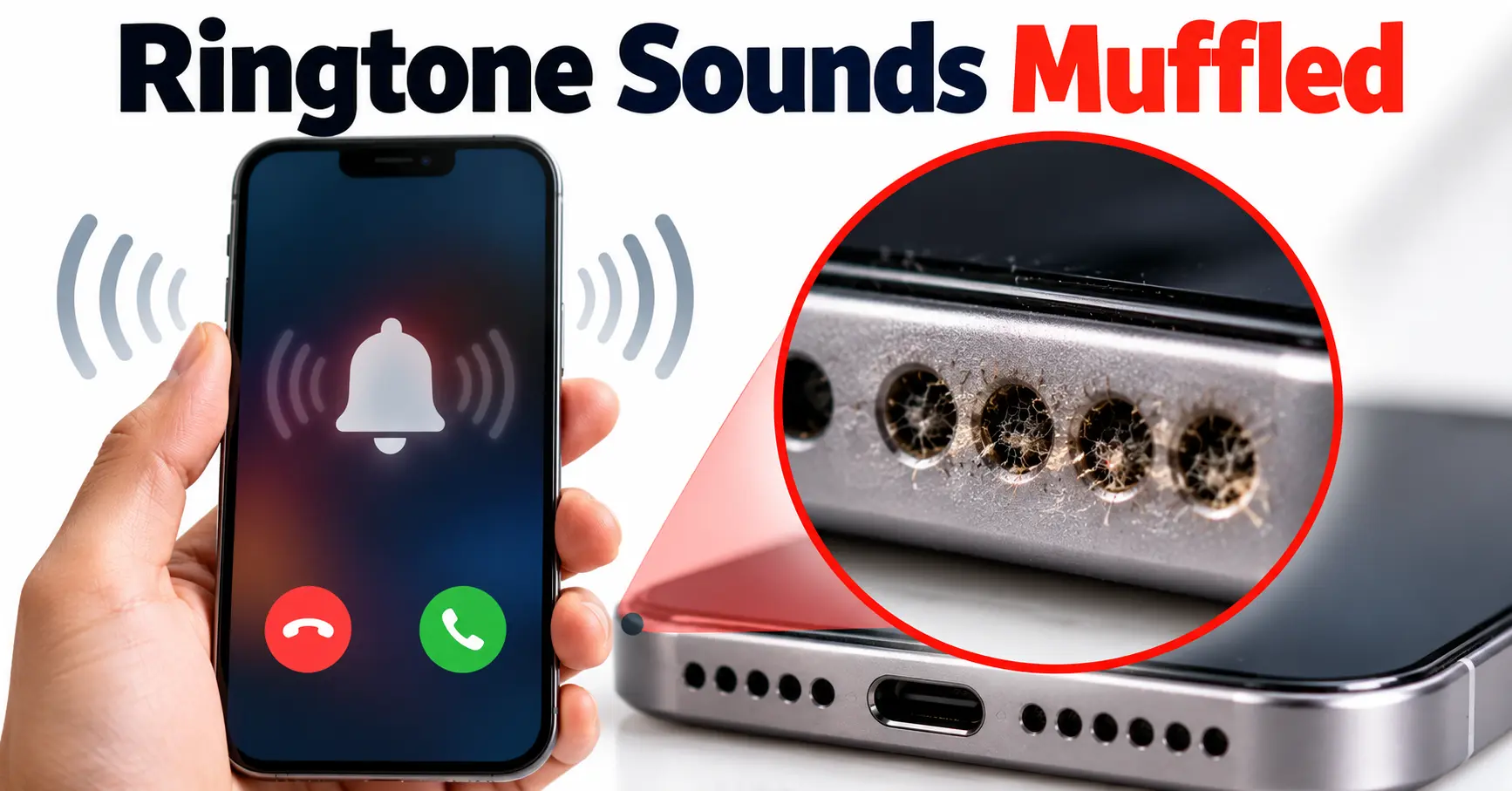
A muffled speaker almost always points to a physical blockage. Either dust has packed into the speaker grill over time, or water is sitting on the speaker diaphragm. Both block sound waves from getting through. The good news is that both are fixable at home without opening the phone.
For Dust and Lint: Use a Soft Brush
Pocket lint and fine dust build up inside the speaker grill slowly. You may not notice it happening. But over weeks and months, it packs in tightly enough to muffle audio output noticeably.
Use a clean, dry, soft-bristled toothbrush. Brush gently across the surface of the speaker holes, moving side to side. Never push the bristles into the holes. You are trying to lift the debris out, not push it further in.
You can also press a strip of painter’s tape or masking tape lightly over the grill and peel it back firmly. This lifts surface lint without inserting anything into the speaker opening.
What not to use:
- Compressed air this can push debris deeper into the speaker or tear the speaker diaphragm
- Toothpicks or needles these puncture the mesh and damage the speaker cone
- Cotton swabs with any liquid wet fibers can make the blockage worse
For Water-Muffled Sound: Use an Acoustic Ejection Tone
You will know water is the issue if the audio sounds like someone talking from behind a wall, or if the volume shifts as you tilt the phone. That happens because a water droplet rolls across the grill holes, blocking and unblocking the sound path as the phone moves.
Water sits on the speaker diaphragm and creates a barrier that blocks sound waves from passing through. The fix is to vibrate the speaker cone hard enough to break the water’s surface tension and push the droplet out through the grill.
A 165Hz acoustic tone does exactly this. At that frequency, the speaker cone reaches maximum excursion (the distance it moves back and forth) while still creating enough air pressure to push the droplet out. This is the same principle behind the Apple Watch Water Eject feature.
Here is what to do:
- Open fixmyspeaker.tech in your phone’s browser. No download or account is needed.
- Set your phone volume to 100%.
- Hold the phone with the speaker grill facing downward so gravity helps.
- Tap Play and run the ejection tone for 1 to 3 minutes.
- After each cycle, wipe the outside of the grill with a dry, lint-free cloth.
- Repeat until you no longer see water droplets forming on the grill surface.
For deep submersion like a toilet, pool, or sink, follow up by placing the phone in a sealed bag or container with silica gel packets for 24 hours. The acoustic tone clears the main speaker channel fast. Silica gel then absorbs remaining humidity from inside the device.

IDC research found that over 100,000 smartphones in Western Europe alone get damaged by water or other liquids every day. Asurion data from more than 750 repair stores showed an 80% increase in water-related phone issues between 2023 and 2024. Acting fast matters. A Gore consumer survey found that for 81% of people who experienced a water incident, the phone was never quite the same after. Getting the water out quickly is the single most important thing you can do.
Fix 6: Is One Speaker Working But Not the Other?
Most phones have two audio outputs. The earpiece sits at the top of the phone and handles call audio when you hold it to your ear. The loudspeaker sits at the bottom and handles music, video, alarms, and speakerphone. They are separate components and can fail independently of each other.
Figuring out which one is affected cuts your troubleshooting time in half.
Isolation test:
- Play a music track at medium volume.
- Cover the bottom speaker grill with your thumb.
- If you can still hear audio from the top, the loudspeaker at the bottom is the problem.
- Now try the reverse: cover the top earpiece during a speakerphone call. If audio continues from the bottom, the top earpiece is the problem.

Earpiece issues (top speaker): The earpiece collects sweat and facial oils during calls over time. Clean it gently with a dry soft-bristle brush. An acoustic ejection tone can also target the top earpiece by turning the phone upside down so the earpiece grill faces downward during the cycle.
Loudspeaker issues (bottom speaker): The bottom grill collects pocket lint faster than any other opening on the phone. Run an acoustic ejection cycle with the phone tilted so the bottom speaker grill faces down. Then brush gently across the holes.
If both speakers fail at the same time, the cause is almost always a software or settings issue. Go back to Fixes 1 through 4 in that case.
For device-specific positioning tips for Samsung Galaxy, Xiaomi, Google Pixel, and iPhone 15 and 16 series, see the device guide at fixmyspeaker.tech.
Fix 7: Use Safe Mode to Rule Out App Conflicts
Some apps take control of your phone’s audio settings without asking. Equalizer apps, volume booster tools, and voice recorder apps are frequent culprits. Safe mode disables all third-party apps and runs only the core operating system. If your speaker works normally in safe mode, a third-party app is causing the sound distortion.
How to enter safe mode on Android:
- Press and hold the power button.
- Tap and hold the Power Off option that appears on screen.
- Tap OK when the Reboot to Safe Mode prompt appears.
- Wait for the phone to restart. You will see the words Safe Mode printed at the bottom of the screen.
- Play audio and test the speaker.
If the sound comes out clearly, restart the phone normally. Then remove apps you installed around the time the problem started, one at a time, and test the speaker after each removal until you find the culprit.
For Samsung and many other Android phones: Dial #0# on the keypad to open the built-in hardware diagnostic menu. Tap Speaker to run an audio test. This tells you right away whether the speaker hardware itself is working or not.
For iPhone: There is no safe mode option, but you can delete recently installed apps one at a time and test the speaker after each deletion.
Fix 8: Update Software and Reset Audio Settings
A software update can introduce audio bugs that affect speaker output. This is well documented across both iOS updates and Samsung One UI releases. If your phone speaker started acting up right after an update, that is likely the cause.
Check for Software Updates
- iPhone: Go to Settings, then General, then Software Update.
- Android: Go to Settings, then System, then Software Update or About Phone.
Install any available update and restart the phone. Developers push audio bug fixes quickly once users report the problem in numbers.
Reset Audio and Sound Settings
If updating does not fix the issue, reset your audio settings without doing a full factory reset. This clears any bad equalizer profiles or misdirected audio routing.
- iPhone: Go to Settings, General, Transfer or Reset iPhone, Reset, then Reset All Settings. This will not delete your photos, contacts, or apps.
- Android: Go to Settings, System, Reset Options, then Reset App Preferences. This clears audio routing preferences that may be stuck on the wrong output device.
Also check your phone’s built-in equalizer. Some Android phones apply custom sound profiles that can muffle treble frequencies and make audio sound flat or distant. Go to Settings, Sound, and look for an EQ or Audio Quality section. Set it back to Normal or Default.
What Speaker Cleaning Methods Are Safe and Which Are Dangerous?
Knowing what not to do is just as important as the fix. Some commonly shared cleaning tips can cause permanent damage to your speaker diaphragm and voice coil.
| Method | Safe? | Works? | Verdict |
| Acoustic ejection tone (165Hz) | Yes | High, especially for water | Use first when speaker got wet |
| Dry soft-bristle brush | Yes | Medium for dry dust | Good for lint and debris |
| Silica gel packets | Yes | High for deep moisture | Use after acoustic ejection for submersions |
| Painter’s tape press and peel | Yes | Low to medium for surface lint | Surface cleaning only |
| Low-suction vacuum (small gap left open) | Use with care | Medium | Leave a gap so no seal forms |
| Compressed air | No | Pushes water deeper, can tear diaphragm | Do not use |
| Hair dryer or heat source | No | Melts adhesive, can swell the battery | Never use |
| Uncooked rice | No | Too slow, leaves starch, blocks ports | Skip this entirely |
| Toothpick or needle | No | Tears diaphragm and punctures mesh | Never use |
The rice myth: Placing a wet phone in uncooked rice is one of the most repeated bad tips shared online and by word of mouth. Rice absorbs humidity very slowly. In the 24 to 48 hours it takes to make a difference, internal metal contacts and audio contacts are already starting to corrode. Rice grains can also get lodged inside USB-C or Lightning ports, creating a second problem on top of the first. Skip rice entirely.

The compressed air problem: Apple Support explicitly warns against using compressed air near speaker and microphone openings. High-pressure air can tear the thin speaker diaphragm or push moisture further into the device, past the speaker assembly and onto the logic board where it causes far more damage than the original water contact.
When Should You Stop DIY and Visit a Repair Professional?
Most phone speaker problems are fixable at home. But some are not. Knowing when to stop can prevent a small problem from becoming a costly one.
Stop DIY troubleshooting and visit a technician if any of these apply to your situation:
- The phone will not power on after getting wet
- You see white or green corrosion around the charging port or SIM tray slot
- The phone feels unusually warm during normal everyday use
- You smell something burning from the device
- The speaker crackles or produces distorted sound at all volume levels, even at the lowest setting (this points to a torn speaker cone or a damaged voice coil)
Saltwater note: If the phone was exposed to ocean water or salt water, an acoustic ejection tone removes the liquid but leaves salt crystals behind. Salt is conductive and causes aggressive corrosion on metal contacts over time. Before running the ejection tone, rinse the phone for about 3 seconds under cool, fresh tap water to wash away the salt minerals. Then run the ejection process and dry as normal.
Liquid Contact Indicators: Manufacturers place small chemically treated strips inside the SIM tray and charging port of most phones. These strips are white or silver normally and turn red on contact with liquid, which can void your standard warranty. Getting water out quickly, before it spreads far enough to reach these indicator strips, gives you the best chance of keeping your warranty coverage intact.
On repair costs: Water damage repair runs between $100 and $400 depending on the extent of the damage, according to Gitnux cell phone repair statistics. Speaker replacement at independent repair shops typically starts around $49 to $150. Research from Gitnux also found that 68% of consumers delay phone repairs because of cost concerns. The steps in this guide are worth working through before spending money.
Restore Your Phone Speaker Today
Most phone speaker problems are solvable at home. Start with the quick settings checks: silent mode, Bluetooth connections, and the phone case. Give the phone a full restart. If the sound is muffled or water-logged, run an acoustic ejection tone to clear the speaker in a few minutes. The free tool at fixmyspeaker.tech works in any browser, on any device, with no download or account needed. It takes under three minutes and costs nothing. Save the repair shop for the cases that truly need it.
Frequently Asked Questions About Troubleshooting Phone Speakers
Why is my phone speaker not working after it got wet?
Water sitting on the speaker diaphragm creates a physical barrier that blocks sound waves from passing through. The audio sounds muffled, distant, or completely absent. The fix is to eject the water as quickly as possible using an acoustic tone at maximum volume. A 165Hz tone is the widely accepted standard because it creates the most air movement without overheating the voice coil. Do not charge the phone until it is completely dry. Charging a wet port causes instant corrosion on the metal pins inside the charging connector.
Why does my phone speaker crackle or distort at high volume?
Crackling at high volume usually means debris is vibrating against the speaker mesh, or a small amount of water is still sitting inside the speaker. Try lowering the volume first. If the crackling disappears at mid-volume levels, the cause is most likely a blockage. If you hear distortion at all volume levels, including very quiet playback, the speaker diaphragm may be physically torn or worn out. In that case, a technician will need to replace the speaker component.
How do I know if my phone speaker is blown or just blocked?
A blocked speaker sounds muffled or underwater but gets louder and clearer once cleaned. A blown speaker produces crackling, buzzing, or a scratchy sound at all volume levels, even very quiet ones. Here is a simple test: play audio at the absolute lowest volume setting. If you still hear distortion at that level, the speaker is most likely physically damaged and not just blocked.
Can I fix my phone speaker without going to a repair shop?
Yes, in most cases. Most speaker problems come from a settings issue, a software conflict, or a physical blockage that you can clear at home in a few minutes. Check your volume and Bluetooth settings first. For water-related muffling, use an acoustic ejection tone at maximum volume for 1 to 3 minutes. For dry dust or lint, use a dry soft-bristle brush across the grill. Only visit a technician if the phone will not turn on, shows signs of port corrosion, or produces distortion at every volume level.
Is it safe to use a sound ejection tool on my phone speaker?
Yes. Standard acoustic ejection tones fall within the 20Hz to 20kHz operating range that all modern smartphone speakers are designed to handle during normal audio playback. To keep things safe, take 30-second breaks every 2 minutes to let the voice coil cool slightly. Used this way, an acoustic ejection tool cannot damage a healthy speaker.
My phone speaker works with headphones but not without. What does that mean?
This almost always means your phone is routing audio to a Bluetooth device, or the phone is stuck in what is sometimes called headphone mode. Disconnect all paired Bluetooth devices in your Settings and test the loudspeaker again. If the problem started right after you removed a pair of wired headphones, the headphone jack or 3.5mm port may have a stuck contact. That contact tells the phone headphones are still plugged in, which disables the loudspeaker. Gently cleaning the headphone port with a dry toothpick (not inside the speaker grill) or restarting the phone usually clears this.
How often should I clean my phone speaker?
Clean your phone speaker once a month for routine maintenance to keep dust and lint from building up inside the grill. If you work in high-dust settings like construction sites, woodworking shops, or kitchens, clean it weekly. A quick acoustic vibration cycle takes under two minutes and keeps the speaker grille clear over time, which helps maintain clear and loud audio quality between cleanings.