You can get a messenger notification sound download as an MP3 for Android or an M4R file for iPhone, then set it as your alert sound. Facebook Messenger does limit custom sounds inside the app. Android lets you pick a sound or add your own. iPhone keeps you on its preset list or the default ding. Pick a royalty-free sound to stay safe. Play the tone, save it, and set it on your phone.
Want a new sound for your chats? Maybe you like the little ding when a message lands. Maybe you hear it all day and want a change. You can get the sound, save it in the right file type, and set it on Android, iOS, or your computer. This page shows you where to get a facebook messenger notification sound download, which file works on your device, and the simple steps to set it. It also shares the honest truth about what Messenger lets you change and what it does not.
Where can you download the Messenger notification sound?
You can get a Messenger style notification tone from free, royalty-free sound libraries. Good picks are Pixabay, Mixkit, Freesound, and ElevenLabs. They hand you a clean MP3 or WAV file in a few taps. The real Facebook ding belongs to Meta, so a cleared royalty-free tone is the safe pick for daily use.
Here is the short way to do a safe messenger notification tone download:
- Open a free sound library like Pixabay, Mixkit, or Freesound.
- Search for “message sound,” “notification tone,” or “ding.”
- Play the clip first so you know how it sounds.
- Tap download and pick MP3 for most phones.
Zedge is another spot many people use for a messenger ringtone download, since it has ready made tones for phones. Stick with these trusted names. Skip random sites with big flashing download buttons, because those often carry ads or unsafe files.
Play and download the Messenger tone and good alternatives
Use the player on this page to hear the sound first, then save it. You get the classic ding plus a few fresh picks, like a soft pop, a light chime, and a gentle alert. Each one is a clean sound effect you can set as your notification tone. Want the send style pop? A messenger pop sound download works the same way as the ding. Tap play, then tap download.
MP3 for Android
Android phones use MP3 for notification sounds, so pick the MP3 button. This gives you a messenger ding sound download that your phone can read right away. A facebook messenger sound download mp3 file also works well as a custom notification sound.
M4R for iPhone
iPhone uses a file type called M4R for custom tones. If you plan to use the sound on an iPhone, grab the M4R version. You can still save the MP3, but you will need to change it to M4R first.
What file type do you need: MP3, M4R, or OGG?
An Android notification sound uses MP3 or OGG. An iPhone custom tone uses M4R. Download MP3 for Android and M4R for iPhone. If you only have a WAV file, change it to MP3 or M4R before you use it. The file type and size matter more than how long the clip is.

Here is a simple guide:
| Your device | File type to use | Where the sound goes |
| Android (Samsung Galaxy, Xiaomi, and more) | MP3 or OGG | Notifications folder, then sound settings |
| iPhone (iOS) | M4R | iPhone tones, then set as ringtone or text tone |
| Any device, for editing | WAV | Change to MP3 or M4R first |
Keep the clip short, around one to three seconds. A short alert sound feels clean and does not drag on.
How do you change the Messenger notification sound on Android?
On Android, open Messenger, tap your profile picture, then open Notifications and Sounds and pick a sound. For your own tone, drop the MP3 into your phone’s Notifications folder first, and it will show up in the list. This is the easy way to set a custom notification sound.
Change it inside Messenger
Here is how to change the Messenger notification sound from the app list:
- Open Facebook Messenger on your Android phone.
- Tap your profile picture in the top corner.
- Tap Notifications and Sounds.
- Tap the sound option and pick one from the list.
Add your own MP3
Want a sound that is not on the list? Add it through your Notifications folder:
- Connect your phone to a computer, or use a file app.
- Open your phone’s internal storage and find the Notifications folder.
- Copy your MP3 into that folder.
- Open your sound settings, and your tone will now show in the list.
On many phones, like Samsung Galaxy and Xiaomi, you can also set a per app sound in the system notification channel. Open Settings, find Messenger, open its notification channel, and pick your sound there. A quick fb messenger sound download plus these steps gives your chats their own voice.
Can you change the Messenger notification sound on iPhone?
On iPhone, Messenger only lets you use its built in tones or the default sound. iOS will not let you set a downloaded MP3 as the Messenger alert. You can make your own M4R iPhone text tone for regular texts, but Messenger keeps its own ding.
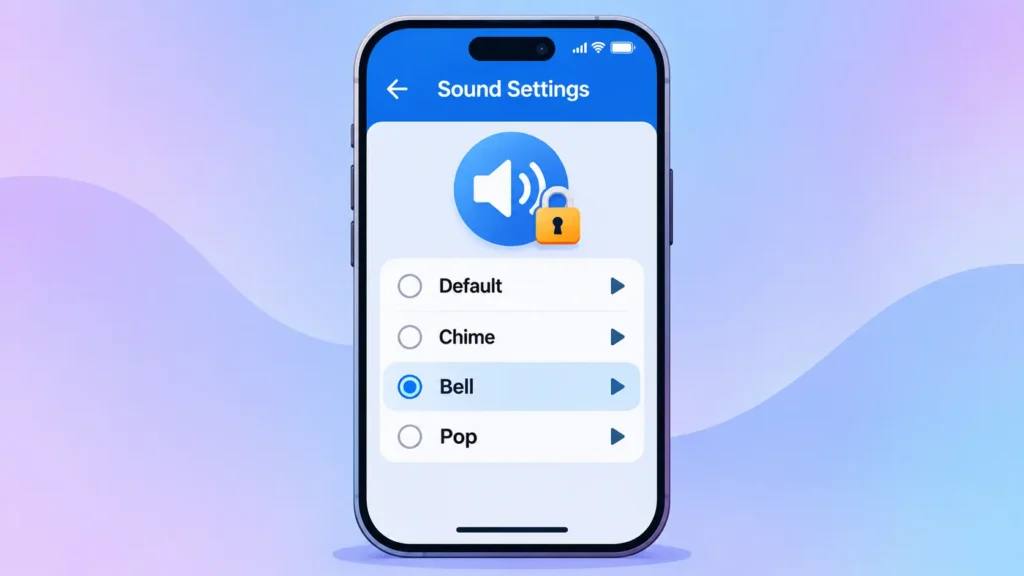
So on iOS your choices are smaller:
- Open Messenger and tap your profile picture.
- Open Notifications and Sounds.
- Pick a text tone from the short list Messenger gives you.
If you want full control over your alert sound on an iPhone, you will have better luck with your phone’s own text tone than with the Messenger app. It is not the news most people want, but it is the honest answer.
Set it on desktop (Messenger.com)
Use Messenger in a browser on a laptop? The site does not have a built in way to swap its sound. A small tool from the Chrome Web Store can change the Messenger.com sound for you. Install it, pick your file, and your new tone plays in your browser tab. On its own, Messenger.com keeps the default sound.
Is it legal to use the Facebook Messenger sound?
The Facebook Messenger sound belongs to Meta, so using the exact file, above all for business, can break copyright rules. For personal use on your own phone, the risk is low. Still, a royalty-free tone from a trusted library is the clean and safe choice. Always read the license on each sound, since a few ask you to give credit.
Messenger notification sound not working? How to fix it
If your sound will not play, run through this quick list:
- Turn up your volume and check that your phone is not on silent.
- Turn off Do Not Disturb or Focus, since both block alerts.
- Open Messenger, go to Notifications and Sounds, and make sure sound is on.
- Check the system notification channel for Messenger and confirm it is not set to silent.
- Pick the tone again, or close and reopen the app to refresh a stuck sound.
If you can set a tone but barely hear it, your speaker may be dusty or quiet. The free tools at Fix My Speaker can help you check your speaker in about a minute.
Get your sound set and keep it clear
Now you can play, download, and set your messenger notification tone download in a few taps. Pick a clean royalty-free tone, match the file type to your phone, and follow the steps for Android or iPhone. Once your sound is set, make sure your speaker plays it loud and clear. Run a quick speaker sound test, or fix a quiet speaker with the volume tool, so you never miss a ping again.
Frequently asked questions
Where can I download the Messenger notification sound?
Get it from free royalty-free libraries like Pixabay, Mixkit, Freesound, or ElevenLabs in MP3 or WAV. Use a cleared tone instead of Meta’s exact file, and your sound stays safe and legal.
How do I get the Messenger ding as an MP3?
Save an MP3 from a free sound library or from the player on this page. If your file is a WAV, change it to MP3 first. The MP3 then works as your notification tone on most phones.
Can I change the Messenger notification sound on iPhone?
Only from Messenger’s short preset list. iOS will not let you use a downloaded MP3 as the Messenger alert, so you may be stuck with the default ding.
How do I set a downloaded sound on Android?
Put the MP3 in your phone’s Notifications folder. Then open Messenger, go to Notifications and Sounds, and pick your tone, or choose it in your system sound settings.
Is it legal to use the Facebook Messenger sound?
It belongs to Meta, so personal use is low risk, but a royalty-free sound is the safe, clear choice. Read each sound’s license before you use it.
MP3 or M4R, which one do I need?
Use MP3 for Android and M4R for iPhone. OGG also works on many Android phones.
How do I turn off the Messenger notification sound?
Open Notifications and Sounds in Messenger and turn the sound off. You can also mute Messenger’s notification channel in your phone’s settings.