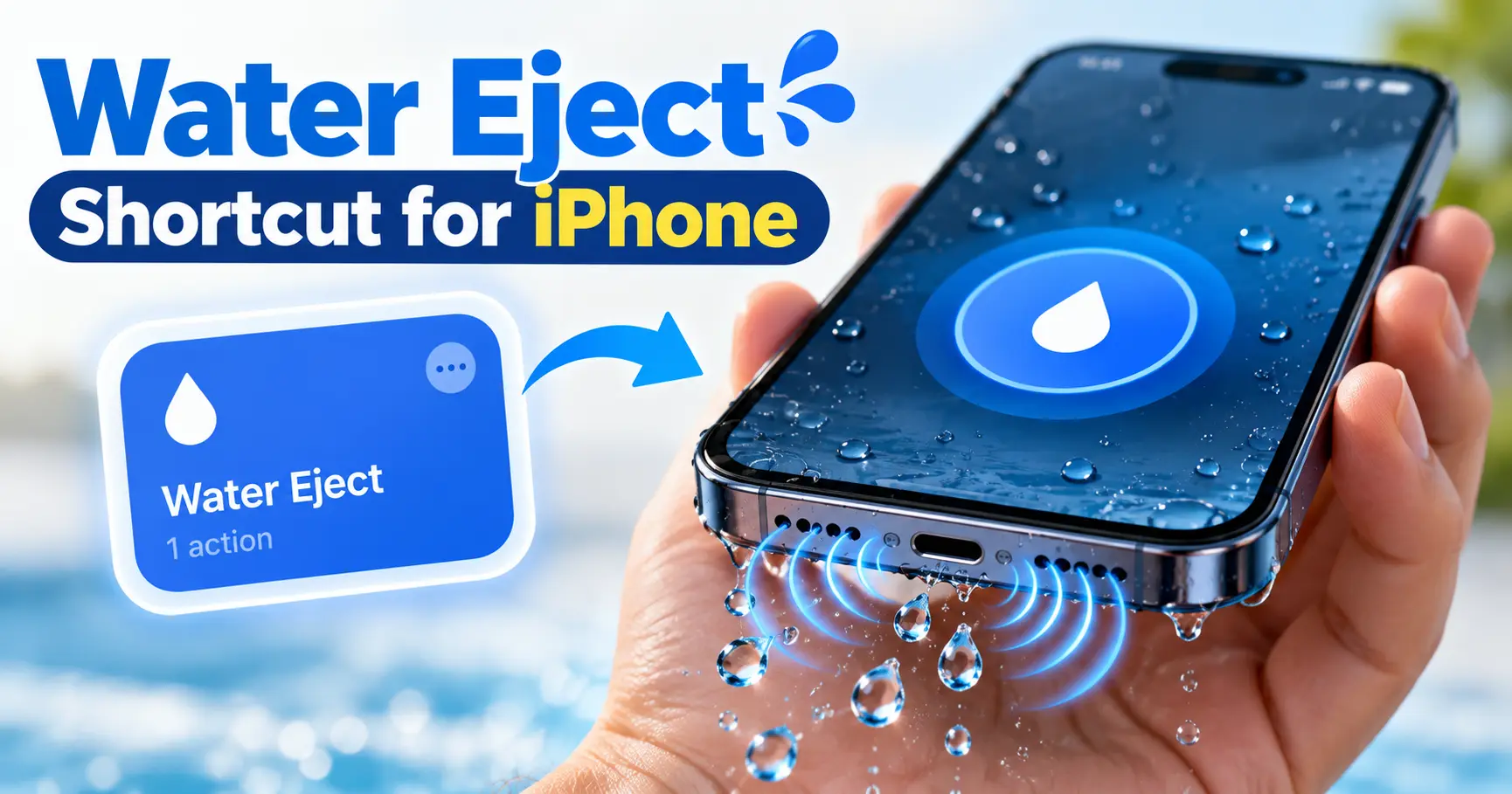
The Water Eject Shortcut for iPhone is a free iOS Shortcuts tool that plays a low-frequency tone through your iPhone speaker to push trapped water out through the speaker grille. Apple does not build this feature into iPhones the way it does on Apple Watch. You must add it manually through the Shortcuts app. To use it: download the shortcut from a trusted iCloud link, open the Shortcuts app, tap the Water Eject tile, pick an intensity level, and hold your phone speaker-side down while the tone plays.
Your iPhone speaker sounds muffled after getting wet. You heard there is an iPhone water eject Siri shortcut for this, something like the water ejection feature on Apple Watch. There is, and it is called the Water Eject Shortcut for iPhone. It takes less than two minutes to set up.
Water damage is the second most common reason phones need repairs, right behind cracked screens. Between 2023 and 2024, Asurion tracked an 80% jump in water-related phone issues. When water gets stuck in your speaker grille, iPhone speaker muffled audio is the first sign. The sound comes out dull, quiet, or like it is playing underwater. The longer that water sits in the speaker mesh, the more likely it is to leave corrosion behind.
This guide covers exactly how to add the iOS water eject shortcut, how to activate it three different ways (including hands-free with Siri), and what to do if the speaker is still muffled after you run it.
What Is the Water Eject Shortcut for iPhone?
The Water Eject Shortcut for iPhone is a free, community-built iOS Shortcuts automation. It is not made by Apple. A developer named Josh0678 created it, and it has been shared widely through the iOS Shortcuts Gallery and iCloud shortcut links ever since.
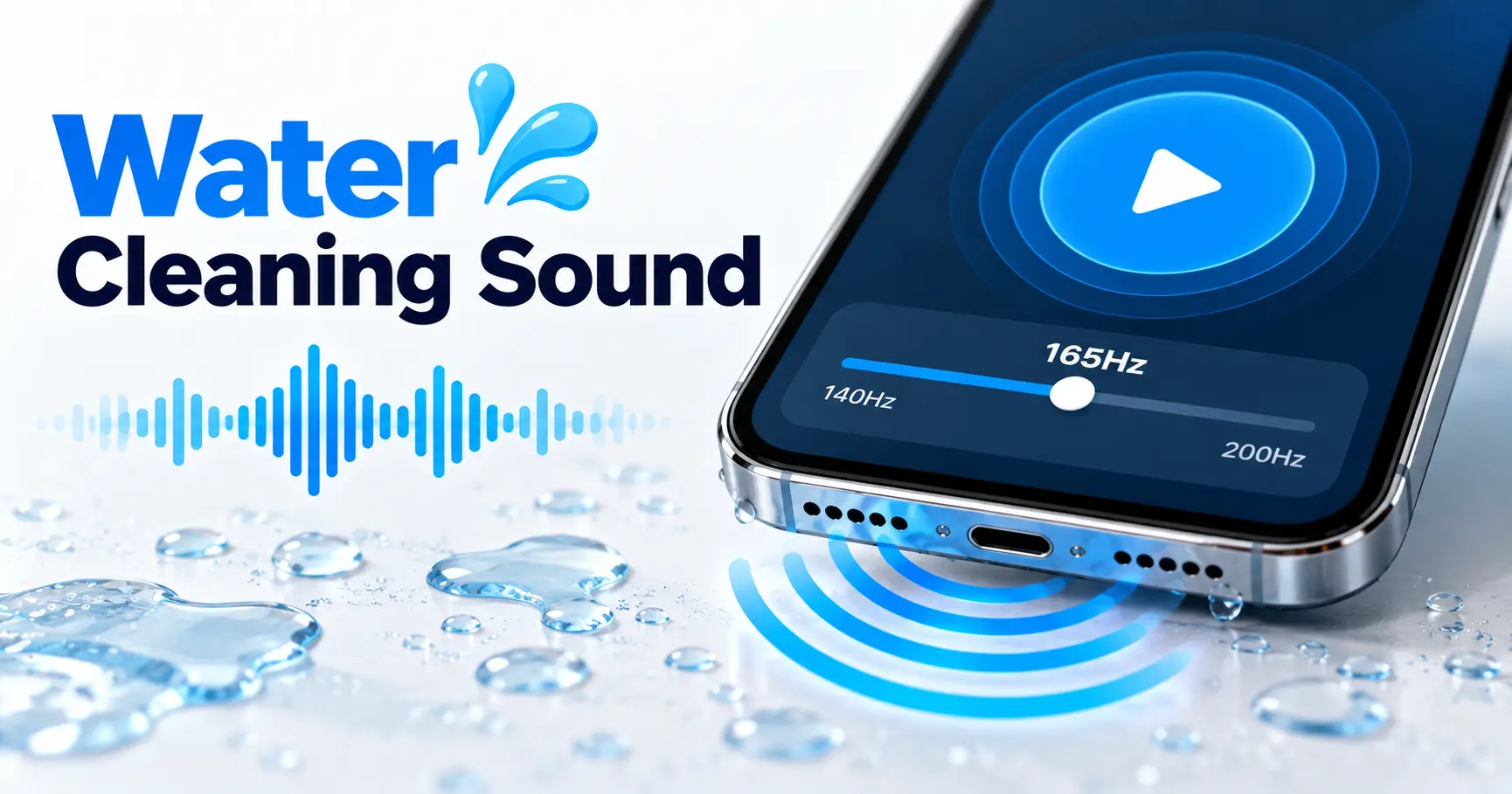
When you run it, the shortcut plays a 165Hz low-frequency sound at maximum volume through your iPhone speaker. That tone causes the speaker diaphragm to vibrate fast and hard. The vibration creates air pressure inside the speaker chamber. That pressure breaks the surface tension of the water trapped in the speaker mesh and pushes the droplets out through the grille holes.
The shortcut lives inside the Apple Shortcuts app, which comes pre-installed on iPhones running iOS 13 or later. It is not an App Store download. There is no subscription and no account needed. It is free every time you use it.
Does Apple Have a Native Water Eject Feature for iPhone?
Apple does not include a native water eject button on iPhones. You will not find a “Water Eject” option in Control Center or anywhere in Settings.
The Apple Watch has this feature built in. It is called Apple Watch Water Lock. When you swim with your Apple Watch and then turn off Water Lock, the watch plays a series of tones through its speaker to push water out. This iPhone water lock shortcut concept comes directly from how Apple Watch has worked since the Series 2 launch in 2016.
The iPhone is a different device. Your iPhone has several openings where liquid can enter: the USB-C or Lightning port, the SIM tray, the microphone holes, and the speaker grilles. A forced vibration cycle built into iOS could push water from the speaker grilles toward those other open spots on the phone. That is the main reason Apple has not added a built-in water eject feature to iPhone.
The community shortcut fills that gap and targets only the speaker grilles. Here is how to set it up.
How to Add Water Eject Shortcut iPhone: Step-by-Step
To add the Water Eject Shortcut to your iPhone, open Safari, go to a trusted iCloud shortcut link, tap Get Shortcut, then tap Add Shortcut inside the Shortcuts app. The shortcut appears in your Shortcuts Library right away. This works on iOS 13 and later.
Knowing how to add the Water Eject Shortcut to your iPhone takes less than two minutes. Follow these steps to complete the water eject shortcut download and installation:

Step 1: Open Safari on your iPhone. The shortcut link must be opened in Safari. It will not work from Chrome or Firefox.
Step 2: In Safari, search for “Water Eject Shortcut iCloud” or go to the Shortcuts Gallery website. Look for the Water Eject shortcut from a trusted tech source. Use a version hosted on iCloud, not a link to a paid App Store app.
Step 3: Tap Get Shortcut on the page. Your iPhone redirects you to the Shortcuts app automatically.
Step 4: Tap Add Shortcut at the bottom of the screen.
Step 5: Handle the permission prompt if one appears. On iOS 13 or iOS 14, if you see a warning that the shortcut cannot be installed, go to Settings, tap Shortcuts, and turn on Allow Untrusted Shortcuts. On iOS 15 and later, iCloud-linked shortcuts skip this step completely.
Step 6: The Water Eject tile now appears in your Shortcuts Library. You are ready to run it.
Which Water Eject Shortcut Version Should You Use?
Several versions of this shortcut exist online. Some are free iCloud links. Others are App Store apps with in-app purchases. For basic speaker water removal, the free iCloud version from the Shortcuts Gallery is all you need. If a page asks you to pay before downloading the shortcut file itself, that is not the original free community version.
How Do You Activate the Water Eject Shortcut?
You can activate the Water Eject Shortcut on iPhone in three ways: by tapping the tile in the Shortcuts app, by using a Siri voice command, or by tapping a home screen icon you set up in advance. The Shortcuts app tap method is the most reliable of the three.
Method 1: Use the Shortcuts App
- Open the Shortcuts app on your iPhone. Search for it by swiping down on your home screen and typing “Shortcuts.”
- Find the Water Eject tile inside My Shortcuts.
- Tap the tile.
- Tap Begin or Start when the menu appears.
- Pick your intensity level. Level 1 is for a light splash or steam. Level 2 is for moderate water exposure. Level 3 is for a full submersion.
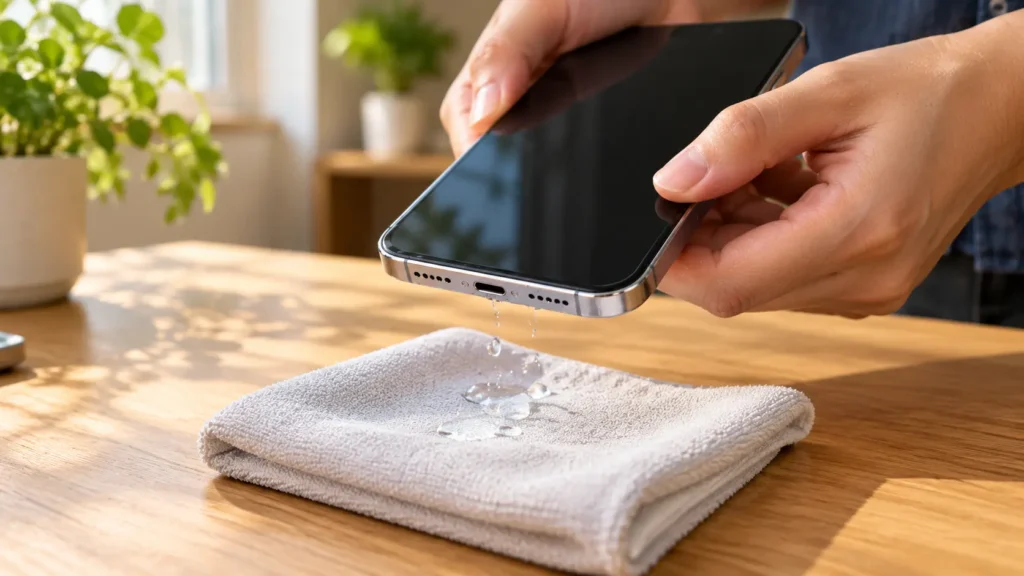
- Hold your iPhone with the bottom speaker pointing down toward a dry cloth.
- The tone plays for about 10 to 15 seconds. A notification appears on screen when the cycle ends.
Method 2: Use a Siri Voice Command (Hey Siri, Water Eject)
Say “Hey Siri run Water Eject” out loud. The key word is “run.” Many users try the command “Hey Siri Water Eject” without “run” first, and Siri often does a Google search for that phrase instead of launching the shortcut.
When Siri brings up the Water Eject menu, tap Begin Water Ejection to start the cycle.
If Siri keeps searching online instead of running the shortcut, open the Shortcuts app and rename the Water Eject shortcut to something unique, like “Speaker Clear” or “Speaker Dry.” Then use that new name as your Siri trigger. This solves the problem reliably.
Method 3: Add a Home Screen Icon
- In the Shortcuts app, long-press the Water Eject tile.
- Tap the three-dot menu in the corner of the tile.
- Tap Details.
- Tap Add to Home Screen.
- Tap Add to confirm.
The shortcut now sits as an icon on your home screen. The next time you need it, tap that icon directly without opening the Shortcuts app.
How Does the Water Eject Shortcut Actually Work?
The shortcut plays a 165Hz acoustic vibration through your iPhone speaker at full volume. This is the water eject iPhone 165Hz method that audio engineers use because it hits the right physical properties for moving water out of a small speaker.

The 165Hz tone sits in a range that works well for speaker water removal. Very low frequencies, like 20Hz, shake the phone body but do not move enough air to push water out through the grille. Very high frequencies, like 10,000Hz, cycle too fast to shift the weight of water droplets. The 165Hz tone is low enough to shake the water loose and high enough to build the air pressure needed to eject it outward.
The speaker diaphragm moves at its widest range of motion during this tone. Each back-and-forth movement of the speaker membrane creates a small burst of air inside the speaker cavity. That air burst overcomes the surface tension holding the water to the mesh. You may see small droplets appear on the outside of the grille within the first 30 seconds on a phone that took a heavy splash.
One thing to keep in mind: the shortcut targets the bottom-firing speaker grille. The earpiece at the top of your iPhone uses a separate, smaller speaker driver. If water is in the earpiece, you may need a higher-frequency sweep to target that specific driver.
What Should You Do After Running the Water Eject Shortcut?
After running the shortcut, wipe the speaker grille with a dry microfiber cloth to pick up the water droplets that came out. Run the shortcut two to three more times for heavy water exposure, taking a short 30-second break between each cycle. Then test the speaker by playing audio at full volume. If the sound is still muffled, place your iPhone in a sealed bag with silica gel packets and leave it overnight.
Use this table to read your results after each cycle:
| Symptom After Shortcut | What It Means | What To Do Next |
| Sound is clear, no crackling | Water came out | No more action needed |
| Sound still muffled | Moisture is still in the grille | Run 2 to 3 more cycles, then silica gel for 24 hours |
| Crackling at all volume levels | Water on the voice coil or debris inside | Silica gel rest for 24 hours, avoid playing audio |
| No sound at all | Possible blown component or shorted audio circuit | Stop using the shortcut, see a repair technician |
| Muffled earpiece only | Shortcut did not target the top speaker | Run a separate earpiece frequency sweep |
To test properly after cleaning, play music at full volume and listen for any muffled or crackly sound. You can also make a speakerphone call. For a full frequency check that covers the whole range of your speaker, Fix My Speaker runs a free speaker sound test straight in your mobile browser with nothing to install.
What If the Shortcut Does Not Remove All the Water?
If the speaker is still muffled after three full cycles, place your iPhone in a sealed zip-lock bag with silica gel packets for 24 hours. The shortcut clears water through the speaker grille. Silica gel then pulls remaining deep moisture out of the internal components. The two methods work better together than either one alone.
Do not use rice. Rice absorbs moisture very slowly, leaves starchy dust in your ports, and takes 48 hours to do what silica gel does in a fraction of that time.
What Are the Alternatives If You Cannot Use the Siri Shortcut?
If you cannot install or run the iOS water eject shortcut, you have solid options that do the same job.
Browser tool (no install needed): Fix My Speaker runs the same 165Hz ejection tone directly in your iPhone’s mobile Safari browser. Open the site, set your volume to 100%, and tap play. It runs in continuous cycles rather than the shortcut’s 10 to 15 second burst, which gives better results for heavier water exposure. It works on any iPhone, iPad, Android phone, or laptop without touching the Shortcuts app at all.
App Store apps: Apps like Sonic and Water Eject by Atul Brahmbhatt offer speaker cleaning as installed apps. Some versions are free with ads. Some have paid upgrades. These are good options if you prefer an app to a shortcut.
YouTube 165Hz tone videos: Playing a 165Hz tone from YouTube is a last-resort option. Audio compression from streaming reduces the precision of the tone, so it is less targeted than a dedicated tool, but better than doing nothing while waiting for the shortcut to install.
Is the Water Eject Shortcut Safe for iPhone Speakers?
Yes. The Water Eject Shortcut is safe for iPhone speakers when you use it correctly.
The 165Hz tone falls well within the designed operating frequency range of iPhone speakers, which spans 20Hz to 20,000Hz. Short cycles of 10 to 15 seconds each put no meaningful stress on a healthy speaker membrane or voice coil. The shortcut will not tear the diaphragm or damage internal parts if you use it in short bursts as described.
A few things to keep in mind:
- Do not run the shortcut for hours without stopping. A few cycles with 30-second breaks between them is the right amount.
- iPhones made before 2016 (iPhone 6 and earlier) do not carry an IP68 water resistance rating. The shortcut can still remove water from the speaker, but those older phones are more exposed to internal liquid damage that the shortcut cannot address.
- If your speaker already crackles at low volume before you run the shortcut, that may point to physical damage already present. The shortcut will not make it worse, but it also cannot repair a torn speaker diaphragm.
- Playing audio through the Shortcuts app is a standard iPhone function and does not affect your Apple Limited Warranty.
Try It Now: Free Speaker Tool for iPhone
The Water Eject Shortcut for iPhone clears most speaker water in under two minutes. If you find the shortcut difficult to set up, or you want a longer continuous cleaning cycle for a heavy submersion, Fix My Speaker runs the same 165Hz ejection tone directly in your mobile Safari browser. No installation, no account, no cost. Open it on your iPhone right now and tap play.
Frequently Asked Questions
How long does the Water Eject Shortcut run?
Most versions of the Water Eject Shortcut play a tone for about 10 to 15 seconds per cycle. For heavy water exposure like a full submersion, run it two to three times with a 30-second break between each cycle. The shortcut sends a notification when each cycle finishes.
Which iPhones support the Water Eject Shortcut?
The Water Eject Shortcut works on all iPhone models running iOS 13 or later. This covers the iPhone 6s through the current iPhone 17 series. iPhones released before 2016, like the iPhone 6 and earlier, do not carry a water resistance rating. The shortcut may clear speaker water on those models, but the phones themselves are not built to handle liquid exposure inside the device.
Why does Siri search the internet instead of running the shortcut?
Siri sometimes reads “Water Eject” as a web search phrase rather than a shortcut name. To fix it, say “Hey Siri, run Water Eject” instead of just “Water Eject.” You can also rename the shortcut inside the Shortcuts app to something unique like “Speaker Clear” and use that new name as your Siri trigger.
Does the Water Eject Shortcut work on the iPhone earpiece?
The Water Eject Shortcut targets the bottom-firing speaker grille, not the earpiece at the top of the screen. If water is in the earpiece, a higher-frequency sweep between 2,000Hz and 5,000Hz works better for that smaller driver. Browser-based tools often include a separate earpiece cleaning mode that covers this.
Is the Water Eject Shortcut free?
Yes. The original Water Eject Shortcut is completely free. It is hosted on iCloud and shared through the Shortcuts Gallery with no payment, subscription, or account required. There are also paid Water Eject apps in the App Store that offer extra features, but the free community shortcut handles standard speaker water removal without any cost.
What should I do if the Water Eject Shortcut does not fix the muffled sound?
Run two to three more cycles while holding the phone speaker-side down. After cycling, place your iPhone in a sealed bag with silica gel packets overnight to pull out remaining deep moisture. If the speaker is still muffled after 24 hours of full drying, the problem may be physical damage inside the speaker that needs a repair technician.
Does the Water Eject Shortcut void the Apple warranty?
No. Playing audio through the Shortcuts app is a standard iPhone feature and does not affect your Apple Limited Warranty. Liquid damage that trips the Liquid Contact Indicator (LCI) inside the SIM tray is what voids standard warranty coverage. Using the shortcut fast after water exposure may help keep the indicator from triggering before the moisture spreads.